Table of Contents
Controlling Music Playback
 The general 'philosophy' of Giocoso is that listening to classical music is a pleasure -but that it's a pleasure to be taken seriously. That's why Giocoso doesn't 'do' tracks: you don't listen to mere parts of whole compositions in the concert hall (on the whole), so you shouldn't be doing that in your music listening room at home, either. It's also why Giocoso doesn't encourage you to skip through recordings; or repeat them; or pause them: if you don't do it in public, you shouldn't be getting into the habit of doing those things in private, either.
That said, listening to a twenty minute symphony without pause or break is one thing; but even the most devout classical music fan is going to struggle listening through 4 hours of Götterdämmerung without a break every now and then! So… yes, somewhat belatedly, Giocoso acquired 'controls' that allow you to pause, resume, repeat and stop playback. These controls are displayed at the bottom of the program display area whenever music is playing (see the first screenshot below). Versions of Giocoso prior to Version 3.13 contained the same options in a dedicated 'Control Menu', but that disappeared in Version 3.13, since the 'bottom control menu' completely replaces it.
An entirely standalone package (called Mgiocoso) was introduced in Version 3.04: it only displays and processes the same set of playback control options on behalf of a second, music-playing Giocoso session. In Version 3.11, Mgiocoso was launched automatically every time Giocoso itself ran, by default (though it was configurable). In Version 3.13 and above, however, since all the music playback controls are now displayed as selectable options from the music playback screen itself, the need for Mgiocoso to control another, music-playing Giocoso session is thereby severely diminished. Mgiocoso thus reverts to being off by default -though it still retains its usefulness as a way for a space-constrained device (such as a smartphone) to control a music-playing session running on a remote PC. The documentation below assumes you are using Giocoso Version 3.13 or higher, at any rate.
The Controls
Playback controls appear within the main Giocoso window (from Version 3.13 and on) at the bottom of the main program display as soon as music playback commences:
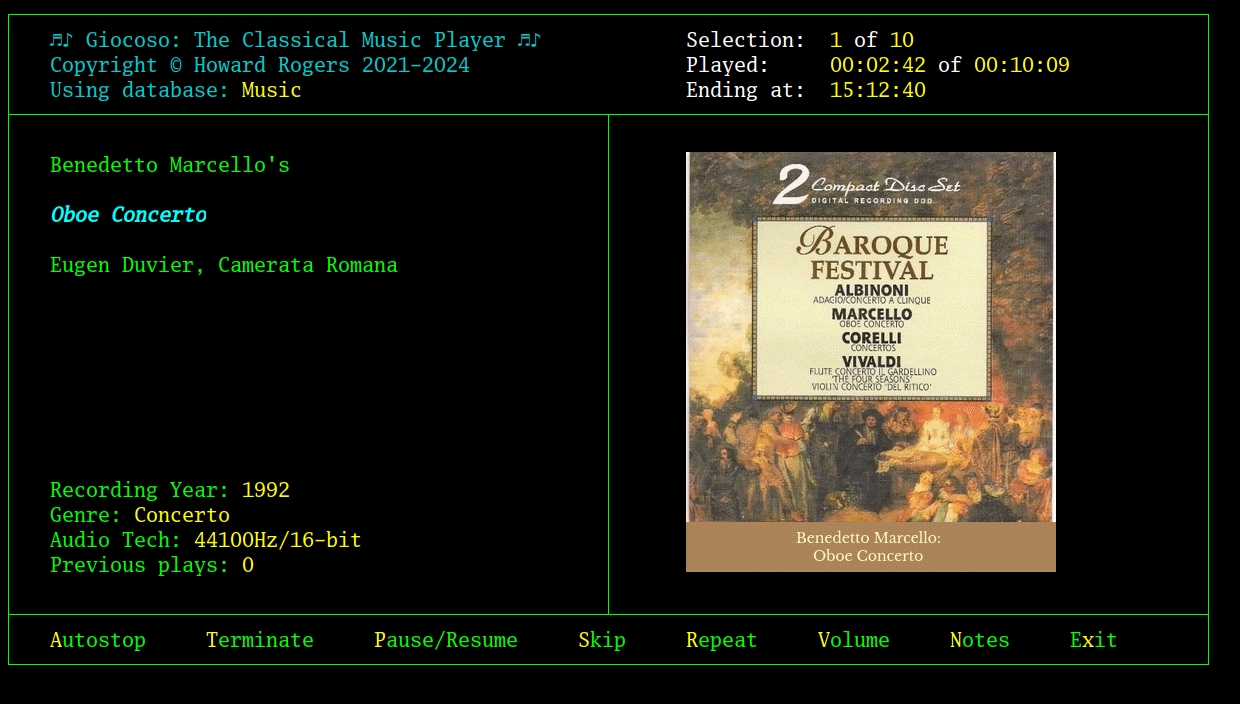
The control options shown in this 'bottom menu' are hopefully self-explanatory. Each is invoked by tapping the letter associated in yellow with each option. That is, type 'A' for 'Autostop', 'S' for 'Skip' and so on. Take note that it's 'x' for Exit, not E, though! Also be aware that the case of the letters you type is irrelevant: type A or a, and Autostop will be engaged regardless, for example.
Taking each option in turn, then:
- Autostop: If you launch Giocoso with the 'Number of plays per cycle' Persistent Configuration parameter set to (say) 10, but after the 2nd recording you need a break, you can take the autostop option to tell the playing session to complete the recording it's already playing, but not to start any new play after that. The currently-playing recording thus completes normally and will be recorded in the Giocoso database as a successful 'play'.
- Terminate: If you take this option, Giocoso will immediately cease playback of the currently-playing recording and will not attempt to play anything else subsequently. No attempt to complete the playback is made: the music just stops abruptly. A terminated play thus hasn't completed successfully and is therefore not recorded in Giocoso's database as a play at all: you don't get partial brownie points for almost-finishing listening to something!
- Pause/Resume: This option tells a playing Giocoso session to immediately pause the recording it's playing. If a recording has already been paused, however, then the message is interpreted as an instruction to resume playback (from the precise moment where playback had previously reached). The pause/resume option is thus a 'toggle switch'. Using it for the first time triggers a pause, using it a second time releases the pause and triggers resumption of playback; using it a third time again pauses playback… and so on, ad infinitum. Please note: As at December 2025, the Pause option will not be displayed (or be operational) on macOS. That platform handles audio processes very differently than Linux, so the usual way of pausing/resuming a music-playing process simply doesn't work correctly on macOS. A fix is in the works…
- Skip: This option tells a playing Giocoso session to immediately cease playback of the currently-playing recording, but to then pick something new to play afterwards (assuming that 'plays per cycle' is set to a number higher than 1 and that 'unused' plays in that cycle exist). A skipped recording doesn't count as a successful play, so isn't recorded in Giocoso's database. A skipped recording also 'consumes' one of the plays in a cycle. If you've said, 'play 10 recordings one after the other' (by setting 'Number of plays per cycle' to 10) and you're currently on play number 4 in that cycle… then a skip command stops the 4th playback and triggers Giocoso to start playing the 5th. If you were on play number 10 and issued a skip, then as there is no 11th play to be had in a cycle, all playback ceases when this 10th recording is stopped in its tracks. Skip is thus similar to 'terminate', except that Skip will play new music after the current play's termination, if possible, whereas Terminate just stops everything in its tracks.
- Repeat: This option tells a playing Giocoso session to repeat the currently-playing recording once it has reached its natural conclusion. Nothing about the current play is interrupted or altered in any way; once it has finished, however, the same recording will get played again, in its entirety, from beginning to end. If you are in a 10-play cycle, however, and request the 10th recording to be played again, the repeat will not happen, because that would be an 11th play in the cycle: there have to be spare 'plays' to accommodate the repeat, basically. Repeated plays are recorded in the database. A repeat request only lasts for the 'lifetime' of the currently-playing recording. That is, if you're playing a symphony, it will repeat …and as the symphony starts its second play, the repeat option is turned off automatically, so the same symphony will only play twice. You can, of course, re-use the Repeat option to trigger a third play at any time the second play is underway (and so on, until no more plays of any sort are possible).
- Volume: This option opens the ALSA volume control panel, allowing you to increase or decrease the volume of the music being played back. Please note that the ALSA volume control is an entirely separate utility that Giocoso merely 'runs' for you. How you use it and how you configure it are really subjects beyond the scope of this document: Google for the term alsamixer, however, and you should find third-party documentation that can help. An example might be this page. I have nevertheless included some notes about it below.
- Notes: This option invokes a text editor and pre-populates it with details of the recording that's playing. The idea is that you can then just type freely anything you like by way of observations about the composition generally or that recording specifically. The text editor that launches when you take this control option will be that which is specified by your system's EDITOR environment; if that's not set at all, then nano is the default editor of last resort. Again, you'll need to know how to use your default text editor (and, specifically, how to save your edits with it), but that is another subject beyond the scope of this particular documentation.
- Exit: Functionally, this option performs the same thing as 'Terminate' but, once that part's complete, it will then quit Giocoso completely.
Autostop, Repeat and Pause/Resume are all toggle commands. That is, you can use them once to initiate some action in a playing Giocoso session -but, so long as you do it swiftly enough, you can also use the same option again to reverse the earlier command. This is explicitly true of pause/resume: one press of menu Option 5 triggers playback pause; a second press of the same option reverses that; a third press would re-initiate a pause and so on, ad infinitum. It is also true of the other commands mentioned: a request to stop all playback after the present recording ends (i.e., an Autostop) can be reversed by sending another Autostop request; likewise, a request to repeat the currently-playing recording can be revoked by sending the same request a second time.
Options in the bottom control bar will highlight when they're first taken; toggle options will remain highlighted until they are toggled back off. Thus, you might end up with a display like this:

…which indicates that all three options, Autostop, Pause and Repeat have been taken at some point. If you were then to withdraw the request to 'repeat' the play, you'd press the R button once more:

…and now two of the options remain toggled on, but the Repeat option is now toggled back off.
The non-toggle options will be highlighted briefly for as long as it takes for Giocoso to process them. Terminates and Skips are pretty instantaneous in operation, though, so it's unlikely you'll ever see them highlighted for long.
Non-Listed Controls
Two options are not shown on the control menu. They nevertheless work in precisely the same fashion as the others, as follows:
- Launch Mgiocoso: tap the letter 'M' (or 'm', of course) and this triggers Giocoso to launch a new Mgiocoso session/window. If one already exists, it is killed off and a new one is launched to replace it. If no existing Mgiocoso session exists, a brand new one is launched.
- Launch Sqlitebrowser: tap the letter 'B' (or 'b' of course) and this will cause the Sqlitebrowser third-party SQL query tool to be launched, if it has been installed (by you!). If the package hasn't been installed, then tapping B will achieve nothing. Note that Giocoso checks whether the package has been installed, but doesn't itself trigger its installation if it detects that it hasn't been. Be warned that each new tap of the 'B' key will trigger the automatic and forceful destruction of any existing Sqlitebrowser windows before a new one is opened: if you had any complex SQL queries typed in the first session, they will be unceremoniously lost when that window is auto-closed.
ALSA Volume Control
I mentioned above that the alsamixer utility can be used to control the output volume levels used for each audio device detected on the system, assuming that your system is using ALSA as its sound server in the first place. If you're using Pipewire or other sound servers, it may not work at all. It also won't do anything if, for example, your audio output is a toslink optical out: the light is either on or off, not dimmer or brighter! Even if you use non-optical digital outputs, they're either on or off, so again, varying the signal strength to achieve volume alteration is a non-starter. Optical or digital outputs are brilliant for isolating your amplifier from electrical noise and for when a capable external DAC (digital to analogue converter) does a better job of signal processing than your PC's built-in one… but abandon any thought of using software volume control if you go these routes: a good remote control for your amplifier will be what you're after!
If you are using a non-digital audio output and the ALSA sound server, however, then you can indeed use alsamixer to adjust music playback volume by software alone. Alsamixer controls one device at a time: you press F6 to obtain a list of all audio devices and select one. Once a device has been selected to be the 'active device', you can increase or decrease the volume of that device using the up- and down-arrow cursor keys.
As you know, of course, you tell Giocoso the audio device you want a music signal to be sent to by setting the 'Audio device to use as default output' parameter in the Persistent Configuration file, accessed via the Administration menu, Option 3. That parameter defaults to a default of, er… 'default': if that's still true for you, then taking this ALSA Volume Control menu option will cause alsamixer to open to the 'master channel' by default -which may or may not be the one you need to adjust the volume of, depending on your hardware specifics.
If you have set Giocoso's audio device parameter to something more specific than 'default', it will usually be to a named device in the format plughw:x,y …and if that's what your Giocoso is set to, then taking the ALSA Volume Control menu option will cause alsamixer to open with the device with device index x pre-set as the active channel (i.e., the first number after the 'plughw:' bit will be treated as though it were the device index). Again, that might or might not be the correct device to alter the volume of, depending on your specific circumstances.
If Giocoso opens alsamixer with the 'wrong' audio device set as active, for whatever reason, remember you can always press F6 to get a pop-up list of all devices, from which you can select the correct one instead.
Here is my current music room PC configuration, for example:
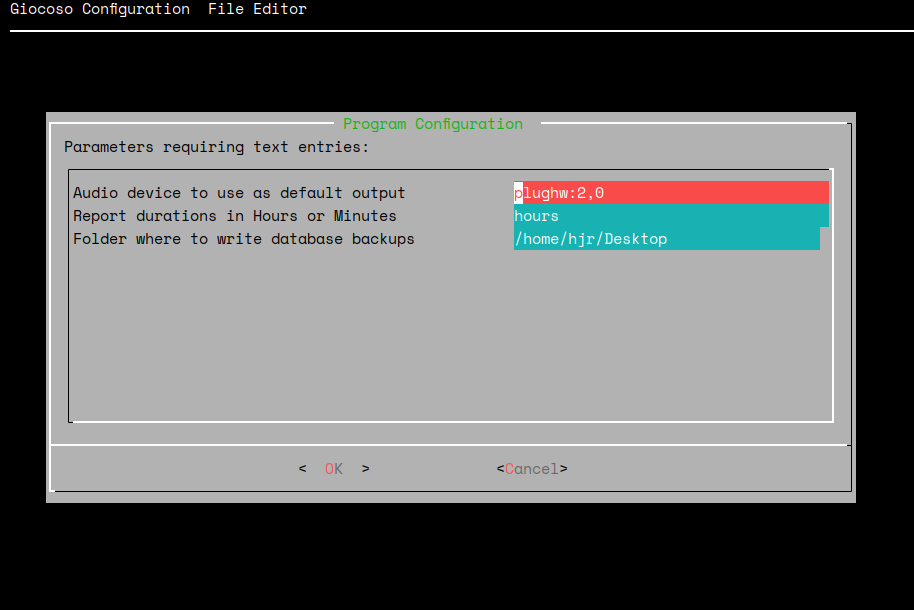
In the Administration menu Option 3, I've said 'plughw:2,0' is my audio device. So when I then take the Control menu Option 6, I see this:
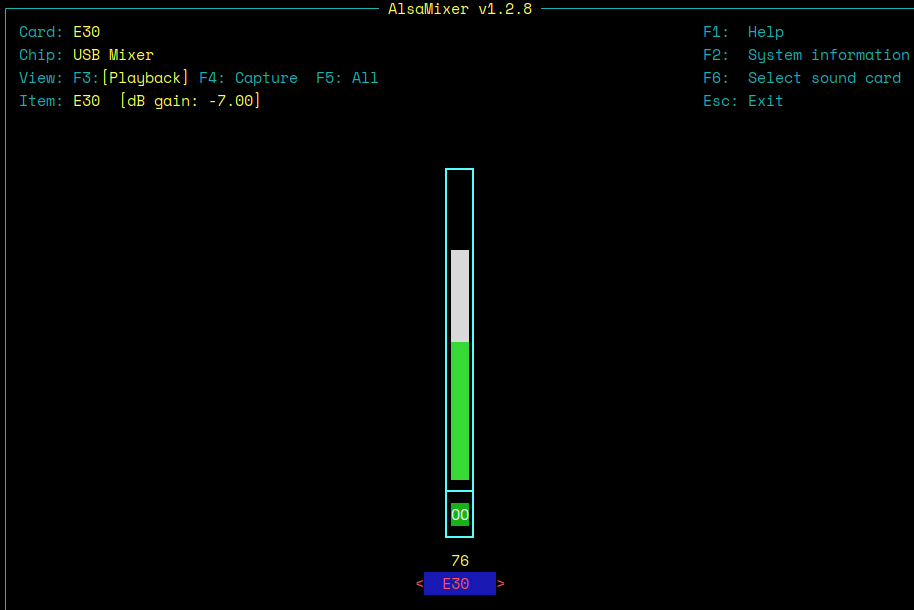
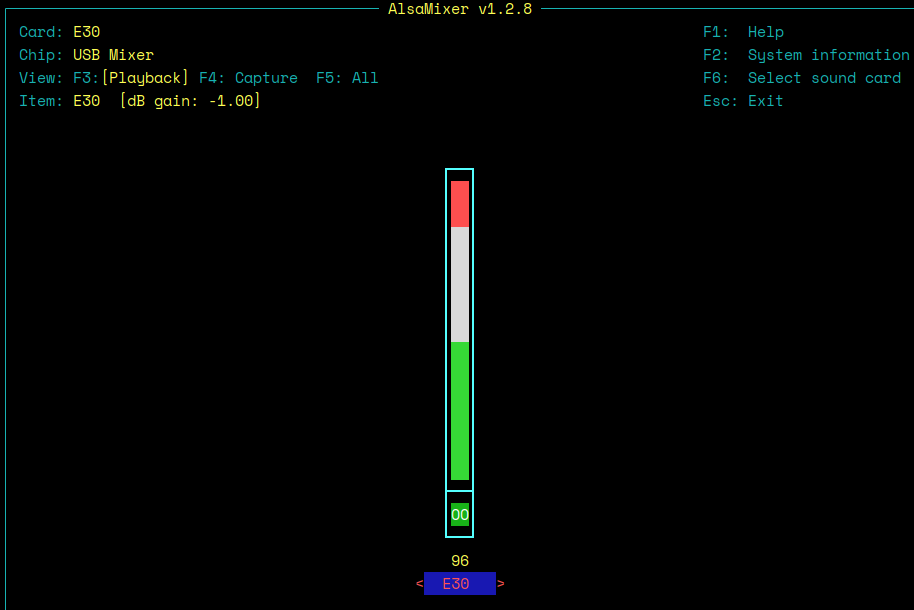
That tells you that alsamixer has opened with the E30 'item' set as the active device. I happen to know that's correct: I play my music via a Topping E30 Digital-to-Analogue converter. So, I can increase that device's volume with the up-arrow:
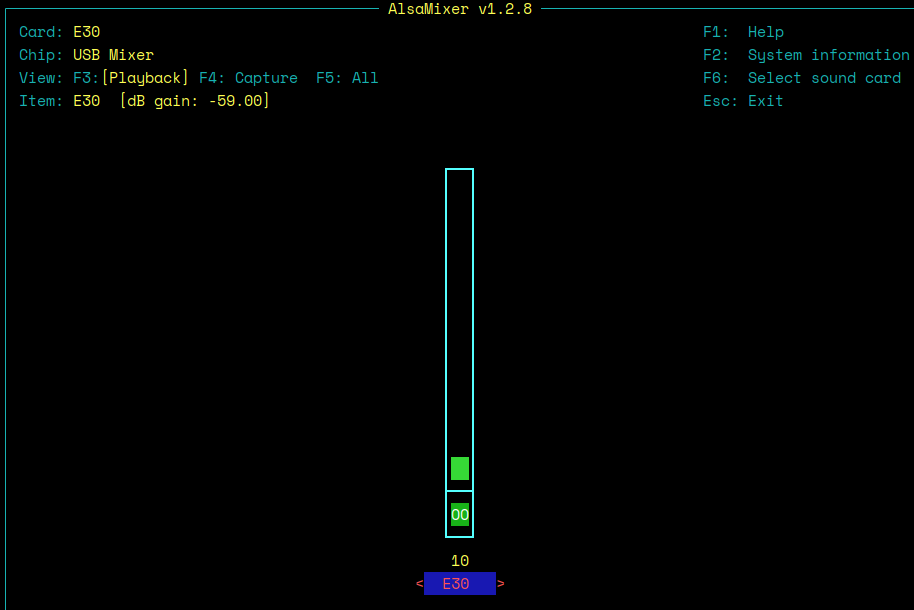
…or lower it with the down-arrow:
But if I didn't know what 'E30' was, how would I know? Well, press F6:
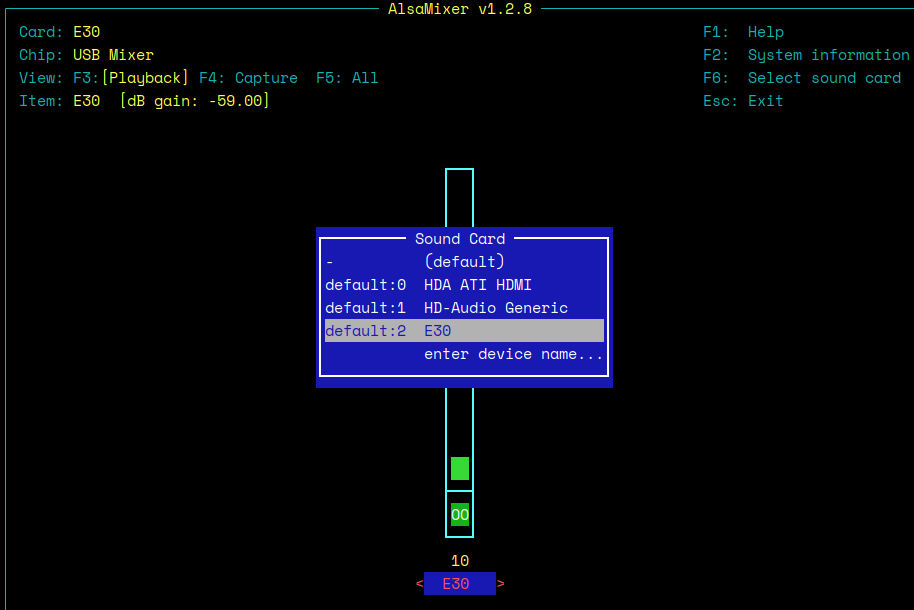
The blue pop-up dialog lists all known audio devices on this PC: you can see most of them relate to audio output via assorted HDMI ports… definitely not something I'd want to control the volume of, since they're not what's plugged into my amplifier! However, if it turned out that starting with the 'E30' device was incorrect, I could just select one of the other devices and up- and down-arrow for that device instead.
You quit out of the alsamixer interface by pressing the ESC ('escape') key: you should be returned to Giocoso's own Control menu.
Now, suppose you hadn't the faintest clue how to configure Giocoso to use the correct audio device:

Here, you see me having set the default audio device for Giocoso as 'plughw:62,0'. That will mean alsamixer would try to open with device '6' as the controlled device (Giocoso only passes the first character of the first device number to alsamixer, so 92 would be passed as '9' and so on)… but as no such device actually exists, that's going to get quite messy:

As you can see, alsamixer tries manfully to tell you that device 6 doesn't exist… but it's getting a bit cluttered on-screen at this point, because Giocoso cannot control the way alsamixer displays its messages. The Giocoso menu is actually working fine, despite appearances, so tapping 'p' at this point, for example, would re-display the Play Music menu and tidy up all the messy messages.
In short:
- if your Giocoso default audio device is configured to 'default', alsamixer will open the 'master' audio channel, which may or may not allow you to set the volume correctly. Try pressing F6 and selecting another listed device and altering the volume of that if the master device is not what is needed
- if your Giocoso default audio device is correctly configured to a numbered plughw device, then alsamixer should open that device and volume control on it will probably work correctly, assuming you're using the ALSA sound server technology at all in the first place. Again, use the F6 trick to select another device if it doesn't seem to work
- if your Giocoso default audio device is incorrectly configured to mention a hardware device number that doesn't actually exist… then invoking alsamixer will result in an error and the Giocoso menu will appear a bit scrambled. Fix your Persistent Configuration file with Administration menu Option 3 before trying to get this ALSA Volume Control option working once more!
You can always adjust the volume using whatever standard controls your distro gives you, entirely outside of Giocoso's purview, of course: this control option is only provided as a possible convenience, whereby volume can be achieved entirely within the context of Giocoso program operation. You don't have to use it if you don't want to, or if it's giving incorrect results.
| Back to Software Home | Back to Giocoso Documentation Home |