Table of Contents
Installing Niente
1.0 Operating System Support
There are four levels of support for installing Niente onto assorted Linux distros and other operating systems, as follows:
- Tier 1: Used by me daily, on real hardware, extensively tested, guaranteed to work well
- Tier 2: Used by me infrequently, mostly in virtual machines, lightly tested, tested extensively in the past, things will almost certainly work
- Tier 3: Hardly ever used by me and then only in virtual machines. No testing done, unless specific issues are reported, but has worked in the past just fine, so things ought still to work, too
- Tier 4: Thought to work, and tested to work in the past, but you're really on your own.
Putting specific, named distros into each tier goes as follows:
- Tier 1: AlmaLinux 9 and 10, Fedora, Linux Mint, Apple macOS
- Tier 2: Debian, EndeavourOS, Ubuntu, Raspberry Pi OS
- Tier 3: OpenSuse Leap & Tumbleweed, GeckoLinux, Arch, Manjaro, Garuda Linux, Devuan, Linux Mint Debian Edition, Peppermint OS, MX Linux, AntiX Linux, Pop! OS, Linux Lite, Zorin OS, Elementary OS, KDE Neon, Tuxedo OS, Nobara, Ultramarine
- Tier 4: Windows
Every listed distro did run Niente perfectly at some time in the past and, if the distro developers haven't messed around with core libraries too much, they should still work. However, only those distros in Tier 1 will receive extensive real-world testing from Version 4.04 and up. Other distros will receive either light-touch testing to make sure most things seem to work fine (Tier 2), or will only be tested on-demand by users reporting specific problems (Tier 3). I've provided some distro-specific notes and gotchas elsewhere.
Raspberry Pi OS is in Tier 2 simply because of performance issues: Niente's integrity checks are quite CPU intensive and neither the Pi 3 or 4 have the required 'oomph' to do integrity checks on a large music collection this side of eternity. I do run a Pi 4 as my main music playing machine and Niente has been installed on it and works reliably… so it ought to qualify as a Tier 1 platform. I simply can't recommend it to anyone that wants it to run at adequate speed, however, which is why it's down at Tier 2. If I ever spring for a Pi 5, its support status may yet be subject to promotion, but I wouldn't hold my breath!
Be aware that if you install Niente on Alma Linux 9, then upgrade your OS to Alma Linux 10, ffmpeg may suddenly cease to be an installed program! (Guess how I know…). Any full or differential integrity check you then perform will be unable to compute a fresh MD5 hash on your FLACs' audio streams: every FLAC will thus be declared 'potentially physically corrupt'. To re-install ffmpeg, you will need to add the RPM Fusion Free release repository. See this page for details on how to do that. Once it's been configured, a sudo dnf install ffmpeg will work, and new Niente integrity checks will work as intended. Alternatively, just do a fresh install of Niente: the Niente installer automatically knows how to install all the repositories and software it needs.
Apple became a Tier 1 operating system when I decided at the end of January 2026 to invest in a brand new Apple Silicon iMac. It's now my principle desktop operating system and, as my daily driver, is going to be the platform on which I test things out most thoroughly. I also have access to a couple of old Apple iMacs (from 2015 and 2012) that use Intel CPUs and can only run modern versions of the operating system thanks to Open Core Legacy Patcher: their 'officially supported' operating systems end with Catalina and Monterey respectively. Accordingly, Niente will be a Tier 1 supported application on only Catalina, Monterey and whatever OS version runs on a 2024 M4 iMac (Tahoe, at the moment). All other OS versions will be Tier 4 support: definitely do-able and definitely done and documented: but you're essentially on your own.
Windows is a bit of a special case, because it probably runs Niente just fine… but I have no means of knowing that for sure. Windows 10 reached end of Microsoft's official support back in October 2025, so all the hardware I have running Niente on Windows 10 is now no longer representative of anything supported by the operating system's own manufacturer. Windows 11 is, of course, fully supported by Microsoft -but I literally have no hardware that is officially supported for running it. I can hack Windows 11 onto a bunch of spare hardware, but it will be an unsupported and unrepresentative platform. The principle, however, is that if you get Windows running the Windows Subsystem for Linux (WSL2) then you can install one of the supported distros on that (for example, Ubuntu or Fedora) and Niente will run perfectly well in that environment. So, it's not that Niente won't run on Windows: it's just that I now expend zero development effort proving it does so. Any issues arising as you try to run it are therefore really yours to resolve. I will certainly offer advice and help if asked, but it will be merely on a 'best efforts' basis. In the meantime, I have written installation instructions for Windows 11 here.
Niente does not work on the Solus Linux distro.
2.0 Installation
The basic installation procedure for any supported operating system is, in a new terminal session:
wget software.bbritten.com/neninst
The installer is small (around 20KB) , so it will take hardly any time to download it. Once the installer has been downloaded, you launch it in the same folder you saved it to, with the command:
bash neninst
You will first see a screen warning you that the installer will make quite a few changes to your system, if you let it:
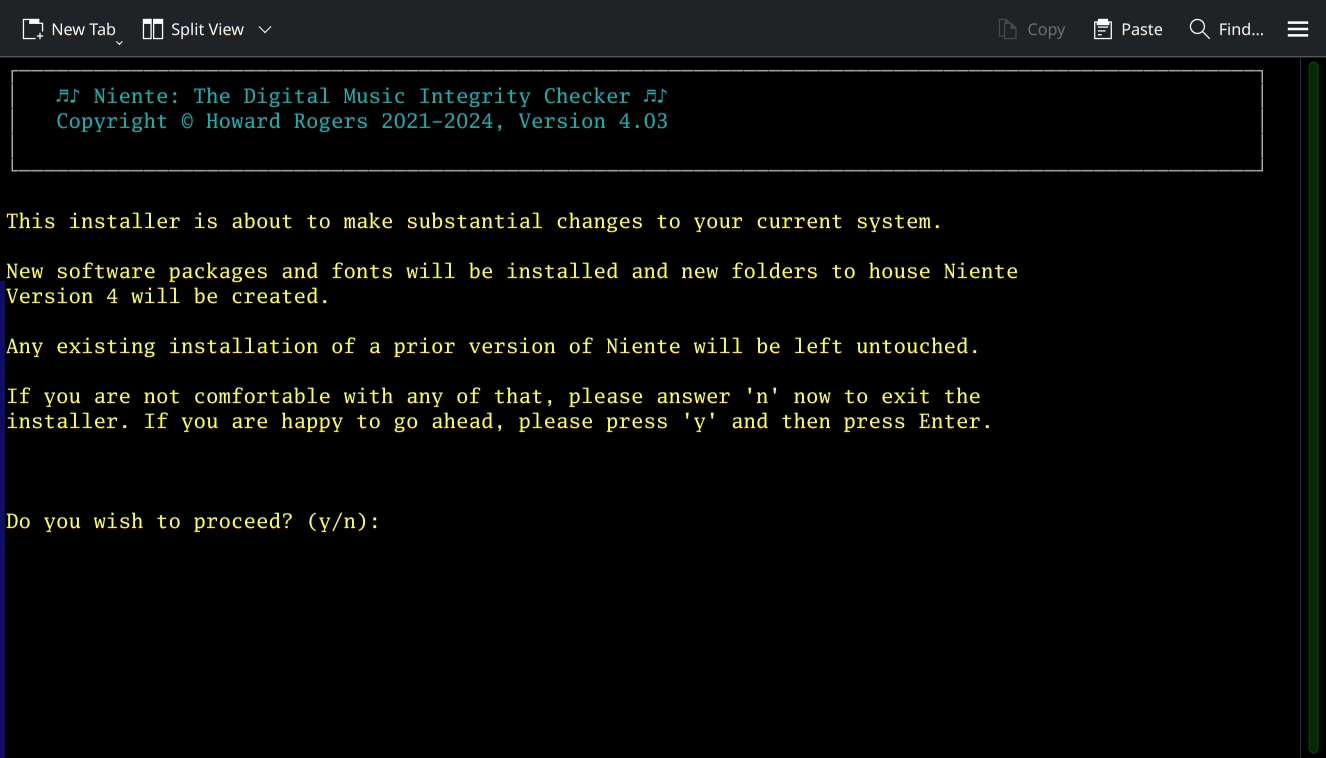
You need to type 'y' (and then press [Enter]) to proceed. If you type anything else, the installer will terminate without having touched your system at all.
At the end of the installation, when you first run Niente, you may find the program display garbled (it is equally possible you won't!). If you do, just visit the Administration menu, take Option 1 to “edit the configuration file” and then press [Enter] through the various options (without changing any of them, really) until you return to the main program display: you should find all visual glitches gone (though you may need to go back into the configuration options to adjust the size of the program logo: it defaults to being 220×220 pixels in size and that might be too large on standard 1080p resolution displays).
2.1 Software packages needed for Niente to work
To start with, the Niente installer will check for the presence of various packages on your system and will seek to install any that it finds to be missing. You can usually just let it do it's thing at this point, but if you are interested, here are the packages/programs that Niente deems essential to install:
- bc (program allowing Bash to perform non-integer arithmetic)
- flac (the library that allows FLAC audio files to be read and understood)
- ffmpeg (an audio and video stream interpreter)
- xterm (a terminal emulator or console)
- sqlite3 (a simple database)
- coreutils (a set of essential libraries, providing functionality like MD5 hash computation)
- imagemagick (an image processing program: works with both ImageMagick versions 6.x and 7.x)
- fd or fd-find, depending on distro (a file searching program)
- dialog (a program allowing the creation and display of user input forms for the terminal)
- cuetools (a program allowing the handling of cue sheets for merged FLACs)
- curl (a program to perform file downloads)
If having any of this software installed on your system gives you cause for concern, type 'n' when the installer prompts you and give up on the idea of installing Niente altogether: the program cannot run without all of them being present, I'm afraid.
3.0 Getting Started, post-Install
Once Niente is installed, you can launch it by (a) clicking on the launcher provided on the Desktop (some distros require you to 'trust' or 'mark as executable' the launcher before it will work); or (b) clicking the option provided somewhere in the main menu, which is usually to be found under 'Multimedia' or (depending on distro) 'Sounds & Video'. The main program display should then appear:
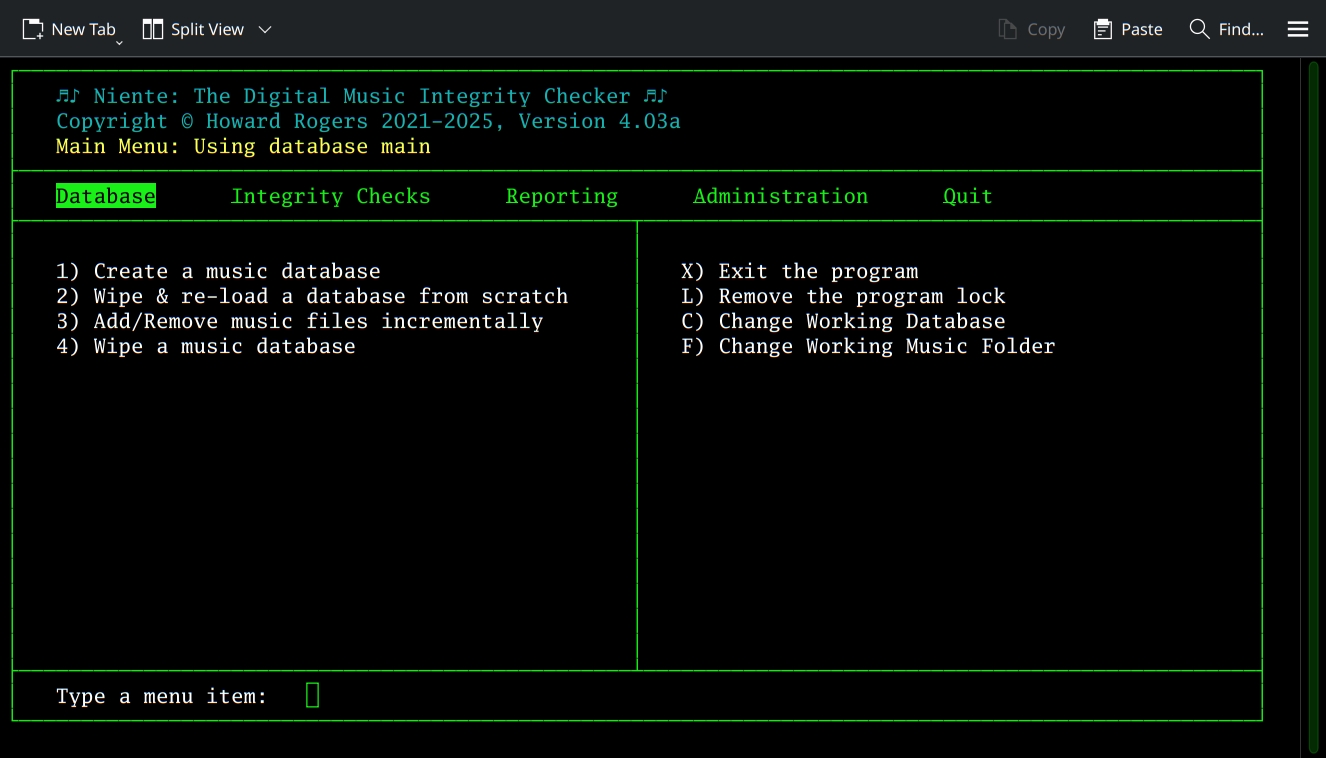
Operation of the program beyond this point is hopefully self-explanatory, with the 'top menu' giving access to each of the three main functional components of Niente in turn, plus the various administrative, housekeeping functions::
- Database: The initial creation and population of a database listing every FLAC file in your music collection
- Integrity Checks: Scan the FLAC files listed in the database and extract metadata and physical characteristics from them
- Reporting: Query the database and generate lists of files which fail particular physical or logical consistency tests
- Administration: Various configuration or program management options
In all cases, top-bar menu options can be accessed by right- or left-arrow keys (the menu wraps, so a right-arrow from Quit takes you back to Database, for example), or by tapping the first letter of the menu name (so tapping 'D' gets you directly to Database, 'R' to Reporting and so on). Once a top-bar menu option has been selected, the numbered menu items within that option will be displayed and can be invoked simply by tapping the number associated with the item. Thus tapping 'D', then '4', will invoke the database wiping option; 'I' then '3' will trigger a fast integrity check, and so on.
A handful of options are accessible regardless of which top-bar menu is selected: they are accessible at any time by tapping the letter associated with them (these options are listed on the right-hand side of the main program display area). Thus tapping 'X' will exit the program, whilst tapping'L' will remove the prgram lock (which prevents two file scanning operations from taking place at the same time).
Beyond that quick-start approach, however, you should read the relevant pages elsewhere in the user manual for an exploration (and explanation!) of the rest of the program's functionality,
4.0 Conclusion
Summarising things as compactly as I can, then:
- fully update your distro, so that it's using the latest packages and patches
- wget software.bbritten.com/neninst
- bash neninst
- type niente at a command prompt to launch the program, or click on one of the graphical launchers provided
I hope all your Niente Version 4 installations work successfully and that you get up-and-running with the new program quickly and painlessly!
| Back to Software Home | Back to Niente Documentation Home | Quick Start Guide |