This is an old revision of the document!
Installing Giocoso
1.0 Operating System Support
There are four levels of support for installing Giocoso onto assorted Linux distros, as follows:
- Tier 1: Used by me daily, on real hardware, extensively tested, guaranteed to work
- Tier 2: Used by me infrequently, only in virtual machines, lightly tested, tested extensively in the past, things will almost certainly work
- Tier 3: Hardly ever used by me and then only in virtual machines. No testing done, unless specific issues are reported, but has worked in the past just fine, so things ought still to work, too
- Tier 4: Thought to work, and tested to work in the past, but you're really on your own.
Putting specific, named distros into each tier goes as follows:
- Tier 1: AlmaLinux 9 and 10; Raspberry Pi OS, Fedora, Linux Mint
- Tier 2: Debian, EndeavourOS, Ubuntu
- Tier 3: OpenSuse Leap & Tumbleweed, GeckoLinux, Arch, Manjaro, Garuda Linux, Devuan, Linux Mint Debian Edition, Peppermint OS, MX Linux, AntiX Linux, Pop! OS, Linux Lite, Zorin OS, Elementary OS, KDE Neon, Tuxedo OS, Nobara, Ultramarine
- Tier 4: Windows, Apple macOS
Every listed distro did run Giocoso perfectly at some time in the past and, if the distro developers haven't messed around with core libraries too much, they should still work. However, only those distros in Tier 1 will receive extensive real-world testing from Version 3.32 and up. Other distros will receive either light-touch testing to make sure most things seem to work fine (Tier 2), or will only be tested on-demand by users reporting specific problems (Tier 3).
Windows is a bit of a special case, because it probably runs Giocoso just fine… but I have no means of knowing that for sure. Windows 10 reached end of Microsoft's official support back in October 2025, so all the hardware I have running Giocoso on Windows 10 is now no longer representative of anything supported by the operating system's own manufacturer. Windows 11 is, of course, fully supported by Microsoft -but I literally have no hardware that is officially supported for running it. I can hack Windows 11 onto a bunch of spare hardware, but it will be an unsupported and unrepresentative platform. The principle, however, is that if you get Windows running the Windows Subsystem for Linux (WSL2) then you can install one of the supported distros on that (for example, Ubuntu or Fedora) and Giocoso will run perfectly well in that environment. So, it's not that Giocoso won't run on Windows: it's just that I now expend zero development effort proving it does so. Any issues arising as you try to run it are therefore really yours to resolve. I will certainly offer advice and help if asked, but it will be merely on a 'best efforts' basis. In the meantime, I have written installation instructions for Windows 11 here.
Giocoso does run on Apple macOS: I use Monterey on a 2015 iMac as a daily driver and so can confirm it works, albeit with a few rough edges (such as not being able to pause/resume music playback, because Apple does things in its own unique way that prevents that happening!) You also have to do quite a bit of installation work yourself ahead of time (such as installing Homebrew or Macports, a newer version of Bash and the wget utility): this stuff is taken care of automatically when running on Linux, but on Mac, you have to do it manually. Giocoso on Apple remains a Tier 4 installation, however, with little or not support, because I don't know enough about macOS to be sure that my installation advice and techniques are in any way sensible. I also don't own Apple Silicon iMacs or Mac Minis: my Apple hardware is all second-hand and as old as the hills, resolutely using Intel CPUs: who knows if my installation process even begins to work on Apple Silicon? Without any appropriate hardware to hand (and no prospect of getting it any time soon), it would be foolish to say I can meaningfully support that platform. I certainly know it works for real with my particular setup, which I've happily documented, but as a Tier 4 platform, it's very much: give it a go and see how you get on.
Giocoso does not work on the Solus Linux distro.
2.0 Installation
The basic installation procedure for any supported operating system is, in a new terminal session:
wget https://software.bbritten.com/gioinst
The installer is small (around 20KB) , so it will take hardly any time to download it. Once the installer has been downloaded, you launch it in the same folder you saved it to, with the command:
bash gioinst
You will first see a screen warning you that the installer will make quite a few changes to your system, if you let it:
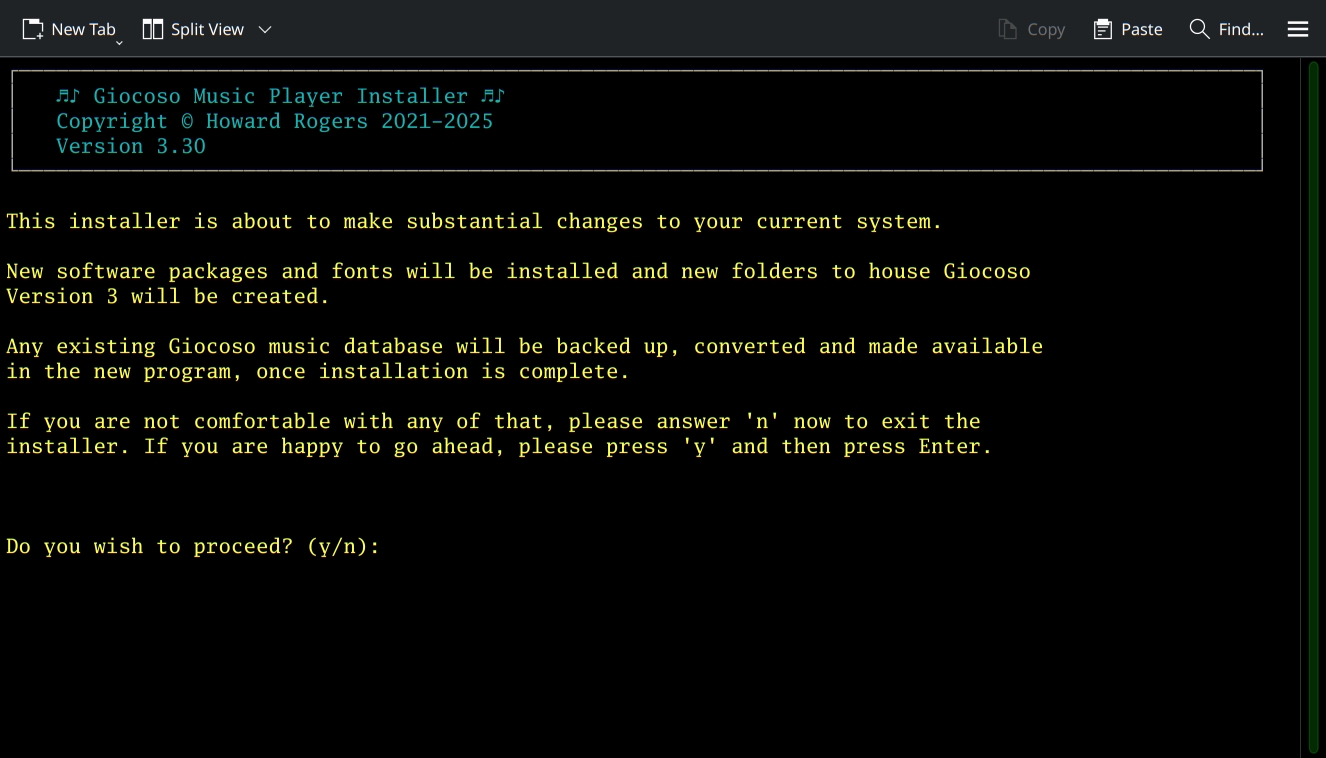
You need to type 'y' (and then press [Enter]) to proceed. If you type anything else, the installer will terminate without having touched your system at all.
2.1 Software packages needed for Giocoso to work
To start with, the Giocoso installer will check for the presence of various packages on your system and will seek to install any that it finds to be missing. You can usually just let it do it's thing at this point, but if you are interested, here are the packages/programs that Giocoso deems essential to install:
- sqlite3 (a database)
- ImageMagick (an image processing program)
- ncurses (a program that allows command-line interfaces to look a bit more like graphical interfaces)
- grep (a text processing program)
- libsixel (a program which allows pictures to be displayed inside a terminal)
- util-linux (a program that allows for the generation of universally unique identifiers, or UUIDs)
- fontconfig (a utility for managing fonts) bc (a computational library that allows Bash to do floating point arithmetic)
- fmt (a tool allowing text messages to be wrapped across a terminal with proper formatting)
- xdotool (a utility allowing command-line management of window placement and sizing)
- xdpyinfo (a utility for determining the current screen resolution)
- flac (the library that allows FLAC audio files to be read and understood)
- ffmpeg (an audio player)
- xclip (a little utility allowing command line management of the clipboard)
- nano (a simple text editor)
- curl (a command line tool for fetching files across the Internet)
- xterm (a terminal emulator or console window)
- dialog (a program that allows programs to draw GUI-like message boxes, file selectors and so on)
If having any of those installed on your system gives you cause for concern, type 'n' when the installer prompts you and give up on the idea of installing Giocoso altogether: the program cannot run without all of them being present, I'm afraid.
2.2 A Word About Fonts and Display Sizes
Giocoso runs in a terminal session that is ideally at least 103 columns wide and 28 tall. Your choice of default font to use in such a terminal session will determine how Giocoso appears. It can look like this:
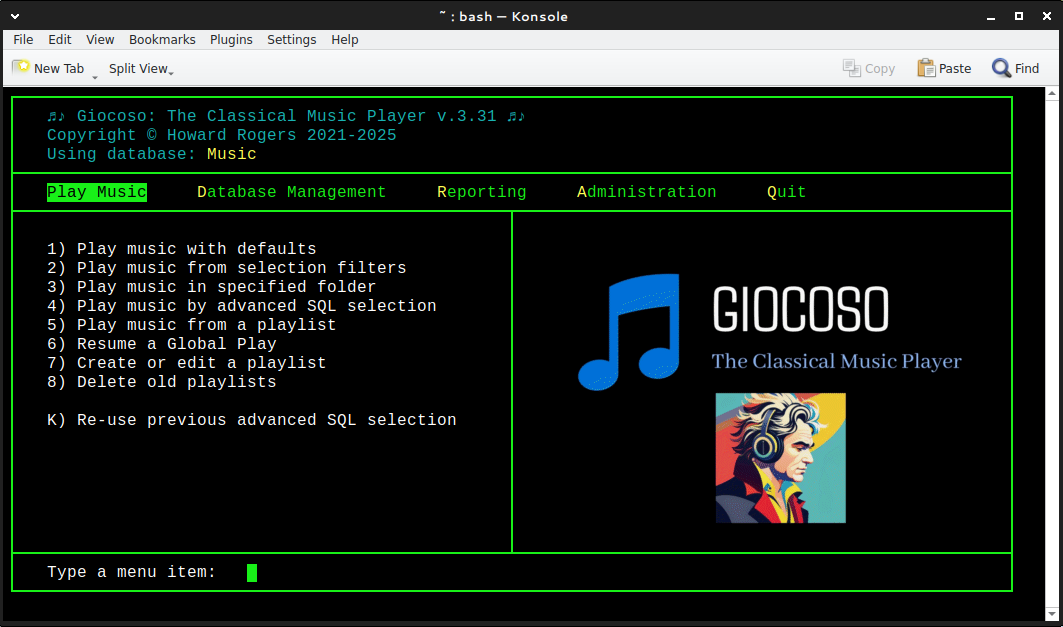
…or like this:
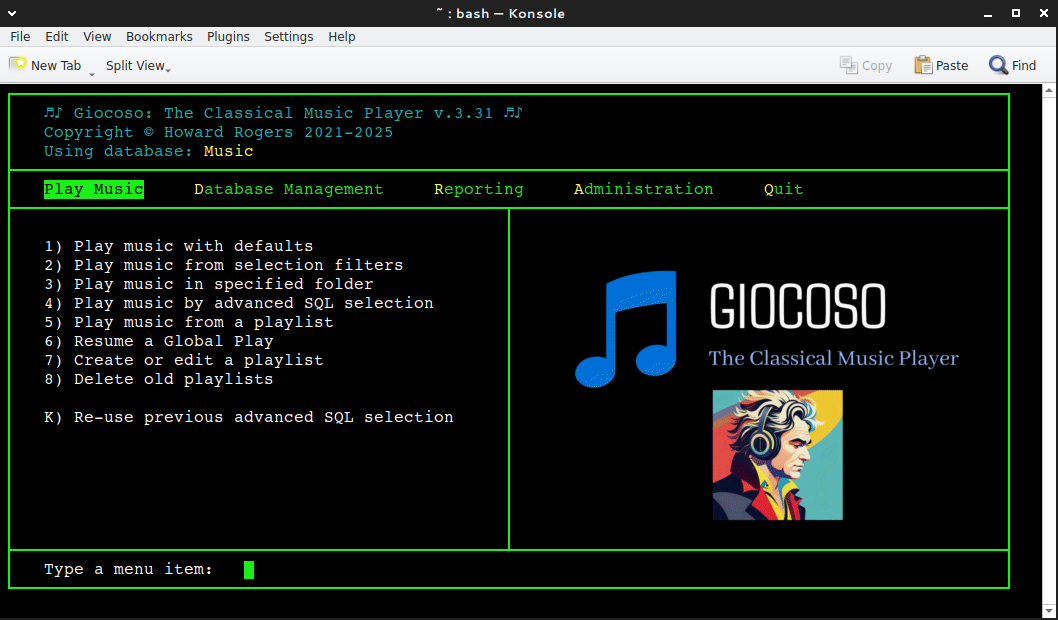
…or, if you really decide to pick unfortunate choices of default font and font-size, this:
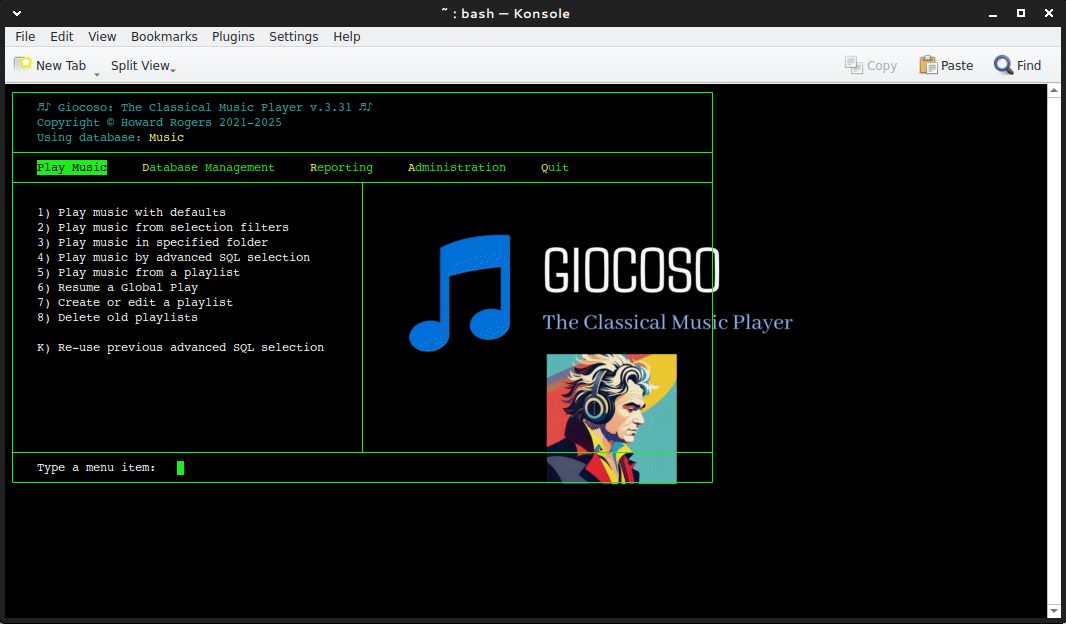
From that last example in particular, you can see that injudicious font choice (or font-size choice) can really mess with Giocoso's display, with the program logo over-writing or colliding with the line drawing characters. To mitigate against this, Giocoso installs a few open source fonts whose existence can then be relied on to produce acceptable-looking program display. The main one is Luxi Mono: choose that as your terminal's default font at 12-point size and Giocoso is more or less guaranteed to display things correctly. The program shortcuts that the Giocoso installer places on your desktop and in your start menu are pre-configured to use Luxi Mono 12-point for their display, too, so they are auto-configured to display things correctly 'out of the box'.
If you choose to use different fonts, that's fine too: but you may have to play around with point sizes to get an acceptable program display.
Also note that the Giocoso installer will install the Libre Baskerville font (another open source font, so no licensing issues arise). This is a non-monospaced font (so has nothing to do with the program display in a terminal session), but is instead used to create the 'caption labels' that appear underneath displayed album art. The use of this font is hard-coded and cannot be changed.
A final factor to consider that will affect program display is the size of the album art that Giocoso will display as each new recording starts. This is configurable in the Administration menu, Option 2:
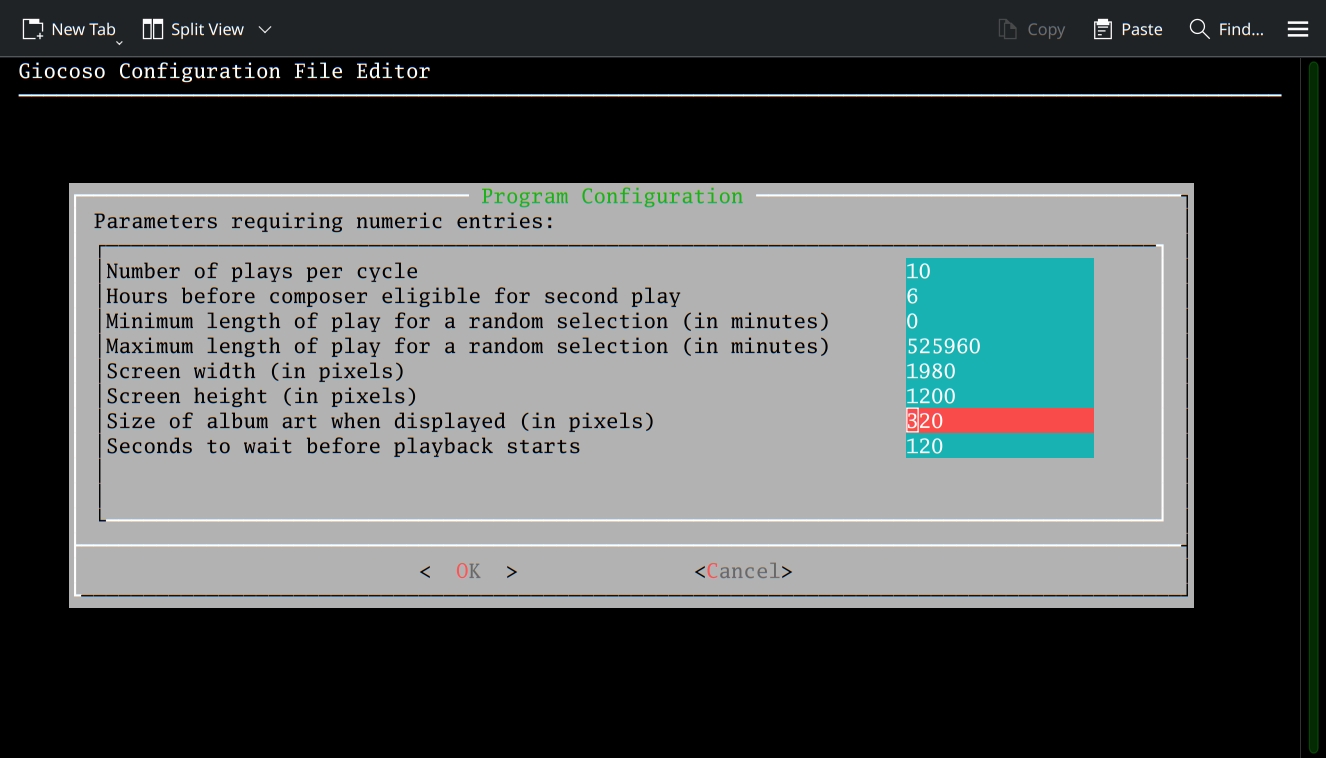
The default size is 320 (meaning that images will be displayed with a width of 320 pixels). You can increase or decrease this as the mood takes you, but don't expect the results to look very good if you over-size things:
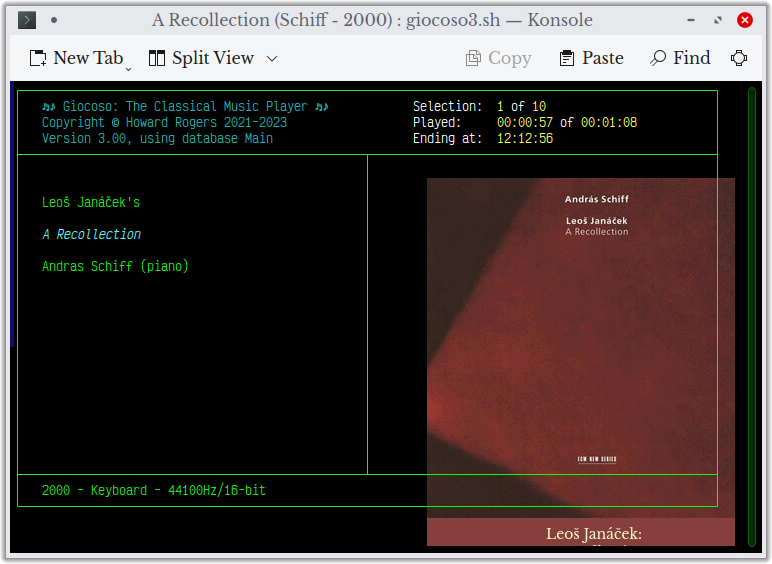
Use of Giocoso may need a little bit of finagling at the start, in order to get these sorts of visual issues sorted. In general, however, if you're displaying Giocoso in a 103×28 terminal with a default, monospaced font that's 12px in size and with album art dimensions set to 320px, you will probably have zero display problems.
3.0 Getting Started, post-Install
Once Giocoso is installed, you can launch it by (a) clicking on the launcher provided on the Desktop (some distros require you to 'trust' or 'mark as executable' the launcher before it will work); or (b) clicking the option provided somewhere in the main menu, which is usually to be found under 'Multimedia' or (depending on distro) 'Sounds & Video'. The main program display should then appear:
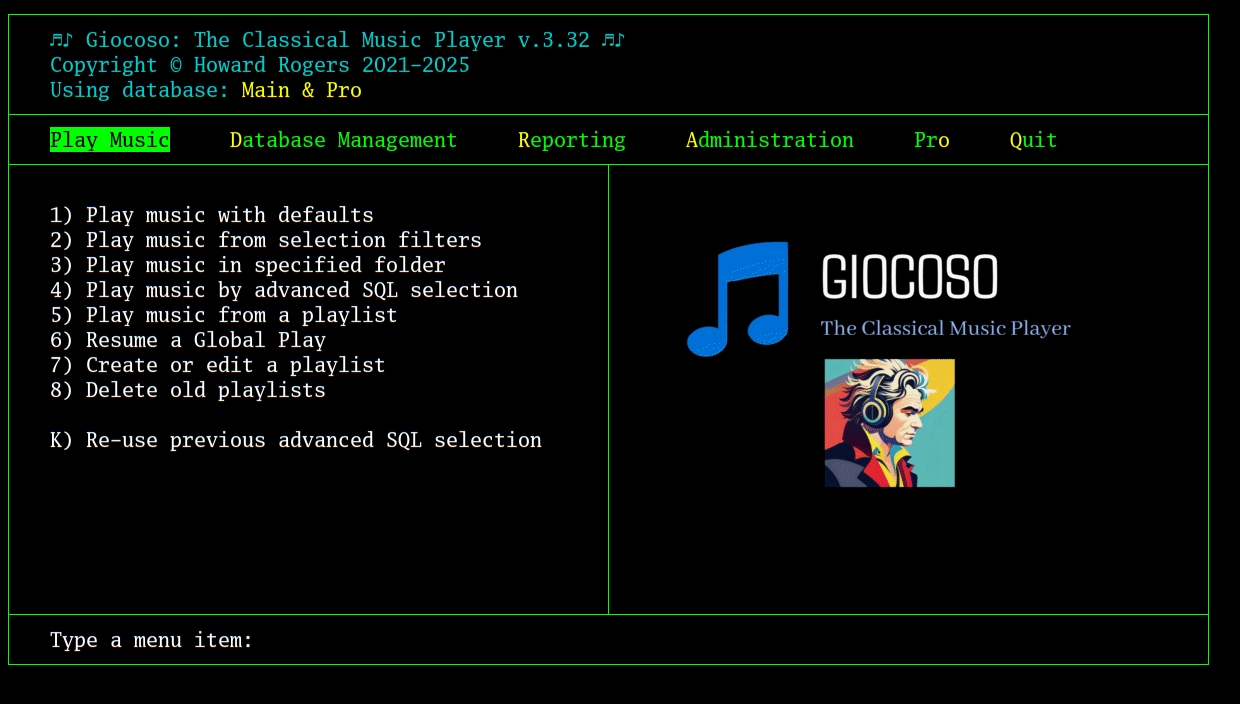
Operation of the program beyond this point is hopefully self-explanatory: the Play Music menu lets you select and play music; the Database Management menu lets you create a music database and then add new recordings to it; the Reporting menu lets you query your music database and generate reports from it, such as how many recordings you own, what proportion of them you've played and so on; the Administration menu lets check for program updates or re-configure the persistent configuration file, and similar tasks. The Pro menu is where advanced networking functionality resides (for example, pausing a play of music in your listening room and resuming it in the garden shed!).
Use the left- and right-arrow keys to select a menu option and have its various options displayed. You can also tap the letter corresponding to the relevant menu: 'R' jumps you to the Reporting menu, for example; 'D' gets you directly to the Database Management menu, and so on. Once any given menu is displayed, tap the number shown against a menu item to select that item. For example, tap '2' when the Play Music menu is selected to perform a 'play music from selection filters' operation.
The usual way to get started with the program would be, though not necessarily in this order:
- Database Management → Create a music database
- Administration → Create or Edit the Configuration File
- Play Music → Play music with defaults
The underlying issue here is that you need (a) to have a database listing all the FLACs you possess; and (b) to have Giocoso configured to open that database by default; and (c) only when the configured default database name matches the database you've actually created can you then play music using it.
By default, Giocoso is configured to expect the existence of a database called music. If you therefore start by creating a database of that name, Giocoso will be fine: as soon as a database of that name is populated with details of the music you own, you'll be able to use Giocoso to play it. If you want to name your database something else, that's OK too: use the Database Management menu to create it, then use the Administration menu to adjust the configuration file to use that distinctively-named database as the default and then you'll be able to play music.
Beyond that quick-start approach, however, you should read the relevant pages elsewhere in the user manual for an exploration (and explanation!) of the rest of the program's functionality.
4.0 Conclusion
Summarising things as compactly as I can, then:
- Read your distro's specific installation notes, to see if there are any pre- or post-installation steps you'll need to take
- Fully update your distro, so that it's using the latest packages and patches
- bash gioinst
- Launch Giocoso and create a new database. If it's called “music”, play music immediately. If it's called something other than “music”, alter the configuration file to use the non-default-named database instead and then play music
I hope all your Giocoso Version 3 installations work successfully and that you get up-and-running with the new program quickly and painlessly!