
The Reporting Menu
Giocoso stores data about what recordings are available and what recordings have been played in a database. If you are using Giocoso in 'Global mode' because you've enabled Giocoso's “Pro” features, those two tables are, respectively, GLOBAL_RECORDINGS and GLOBAL_PLAYS. If you are using Giocoso only in 'Local mode', they are called just RECORDINGS and PLAYS. You'll know which reporting mode you're running in by looking at the top of the screen for any Giocoso reporting option:
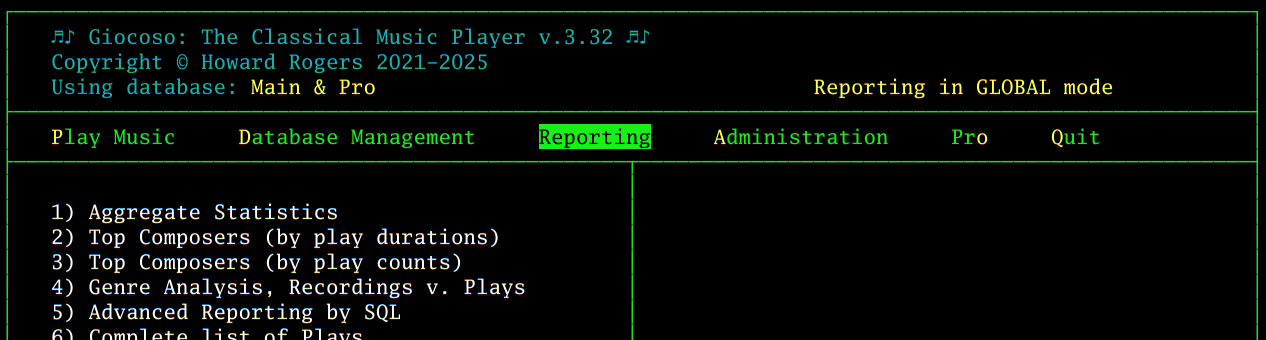
The 'Reporting in GLOBAL mode' you see in this screenshot will instead read 'Reporting in LOCAL mode' if that's the mode you're using. Whichever mode you're using, this pair of recording/plays tables can be queried to generate reports. Production of any report is entirely non-destructive: reports show you what data exists, but cannot themselves delete or alter that data. Therefore, they are perfectly safe to experiment with -and I accordingly don't propose to go through each reporting menu option in detail. Try them out, see if the data is of use to you and if not, move on!
Here, then, I'll mention some specific features of all reports, before describing Option 4 (the 'advanced reporting' option) in some detail.
General Report Behaviour
Reports generated by menu options 1 to 4 will display their content “in-screen”, like so:
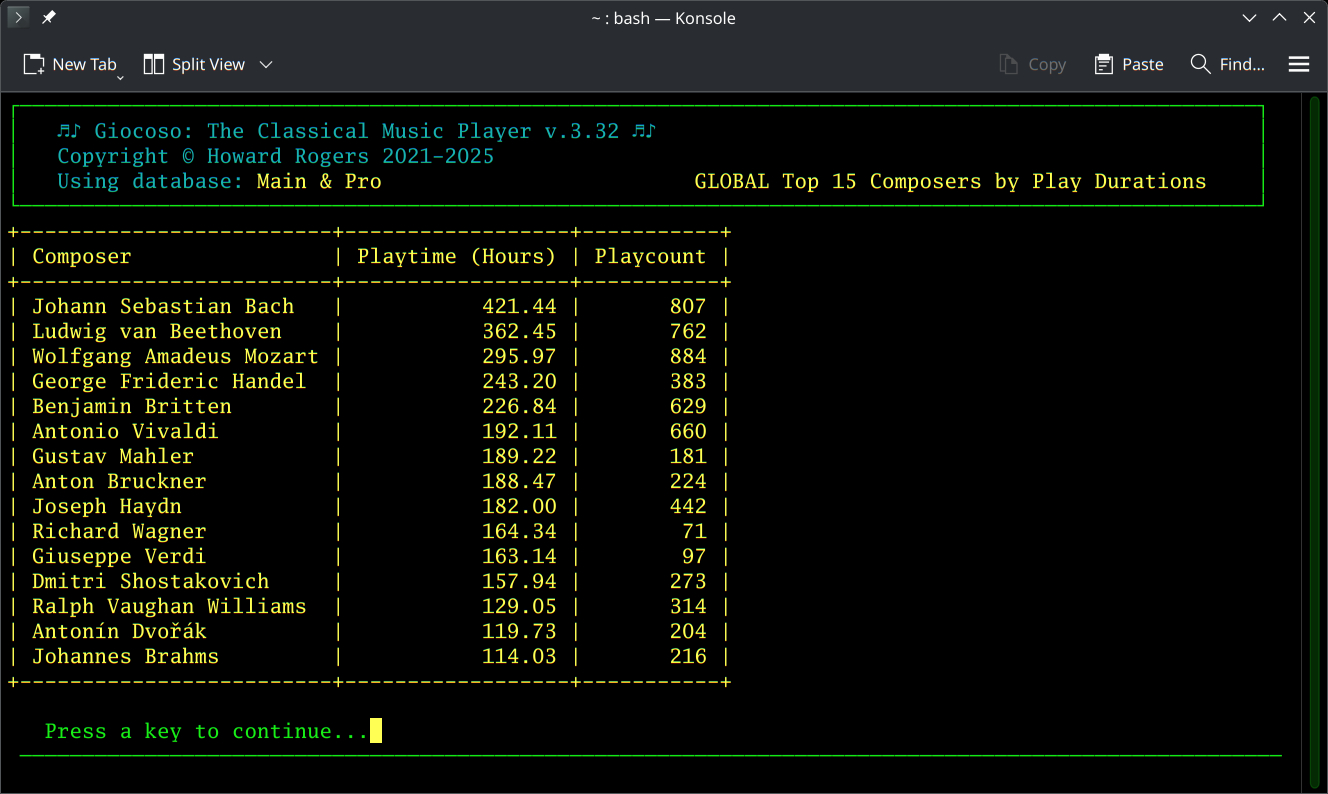
Global in-screen reports surround their data in hyphens and plus signs to create a 'table' effect. In local mode, that doesn't happen:
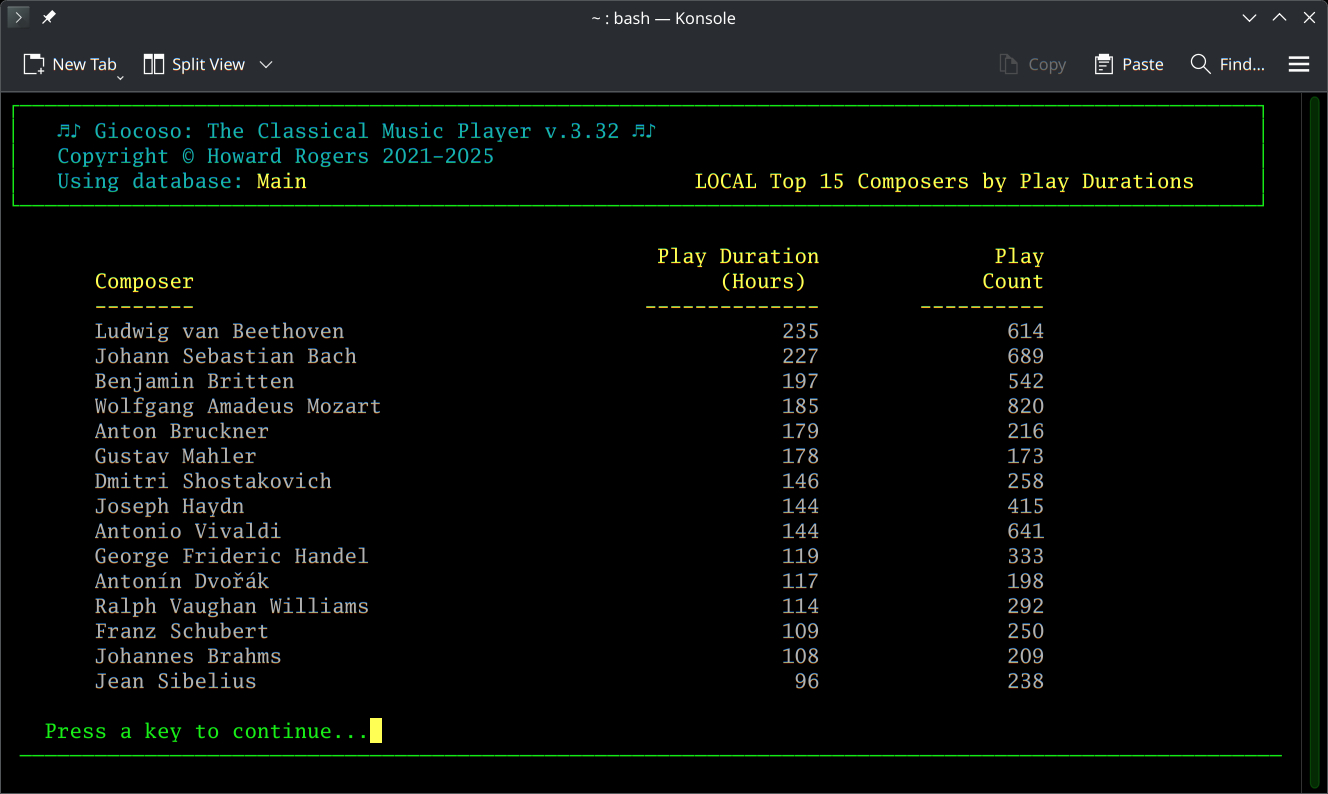
Obviously, the content of a global report will also probably differ from the same report run in local mode (because it will contain plays, for example, that were performed on machines which aren't the one the report is being generated by). All such 'in-screen' reports are closed by pressing a key when you're ready: control will be returned to the Reports menu.
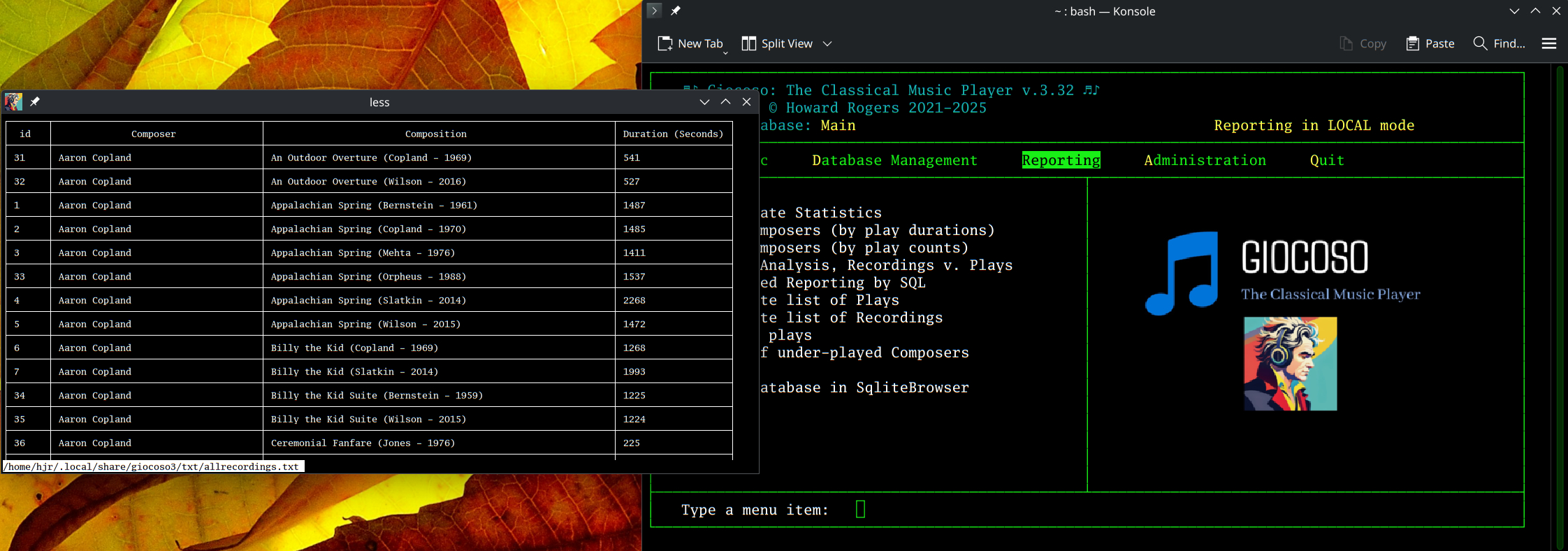
Reports generated by menu options 5 to 9, however, will output their data rather differently. In local mode, they'll direct their output into new, standalone windows, like so:
In global mode, the report content will be directed to an instance of your system's default Internet browser. Here's my list of all recordings appearing in Firefox, for example:
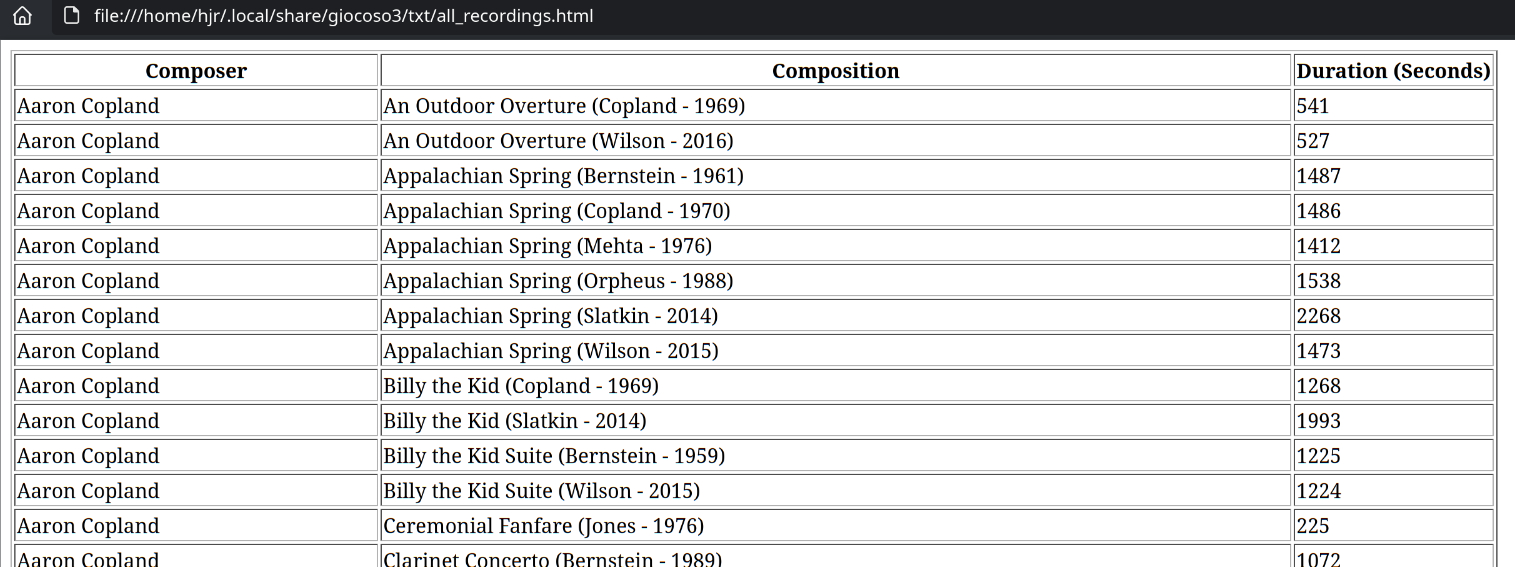
If you're in local mode, such reports can be navigated using the standard up-and-down arrow keys (to move one line at a time) or with the PgUp and PgDn keys (to scroll through whole screens at a time). Local reports can be closed by tapping 'q' at any time; they can also be searched, by typing the forward-slash key (i.e., /) and then any text you're looking for. For example, if I was wondering when the last time I played Britten's <em>War Requiem</em>, I'd run the Reporting menu Option 6 ('Complete list of plays'), tap forward-slash, type 'War Requiem' (the search term is case-sensitive, so the use of capital letters is important) and see this:

…and you'll note that the search term has been highlighted -and I can tell I last listened to the work on August 30th 2023. You can then tap the letter <strong>n</strong> to jump to the next occurrence of the search term (and <strong>N</strong> to get to the previous one -that's capital N or lower-case n, depending on your desired direction of travel).
You can also jump to the end of a local report by tapping 'G' and jump back to the beginning by tapping 'g' (i.e., upper-case G goes in one direction; lower-case g goes in the other).
Another trick you might want to try when running local reports is to tap the letter v when viewing a report: this transfers the report to your system's default text editor directly, from where you can use standard commands to save the report to disk. So, for example, before I launch Giocoso, let's say I issue the command:
export EDITOR=kate
When I then run Giocoso, it runs perfectly normally and I can run Reporting menu Option 6 (which lists all plays) without drama: things still open in a new window, as usual:
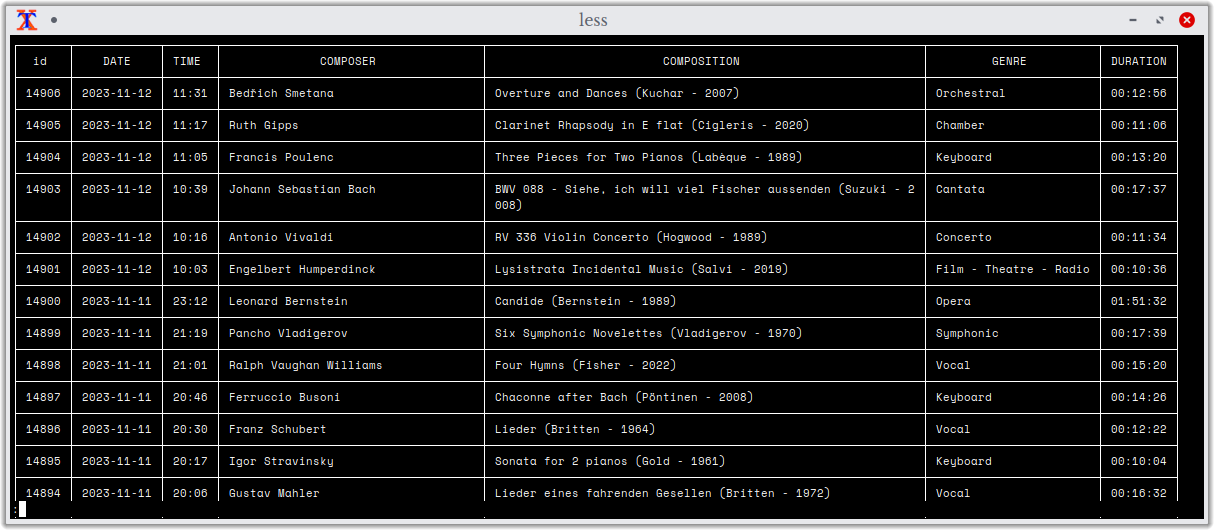
You can also see that the report is displayed within a standard X terminal window, which is entirely normal. Now tap the letter 'v':
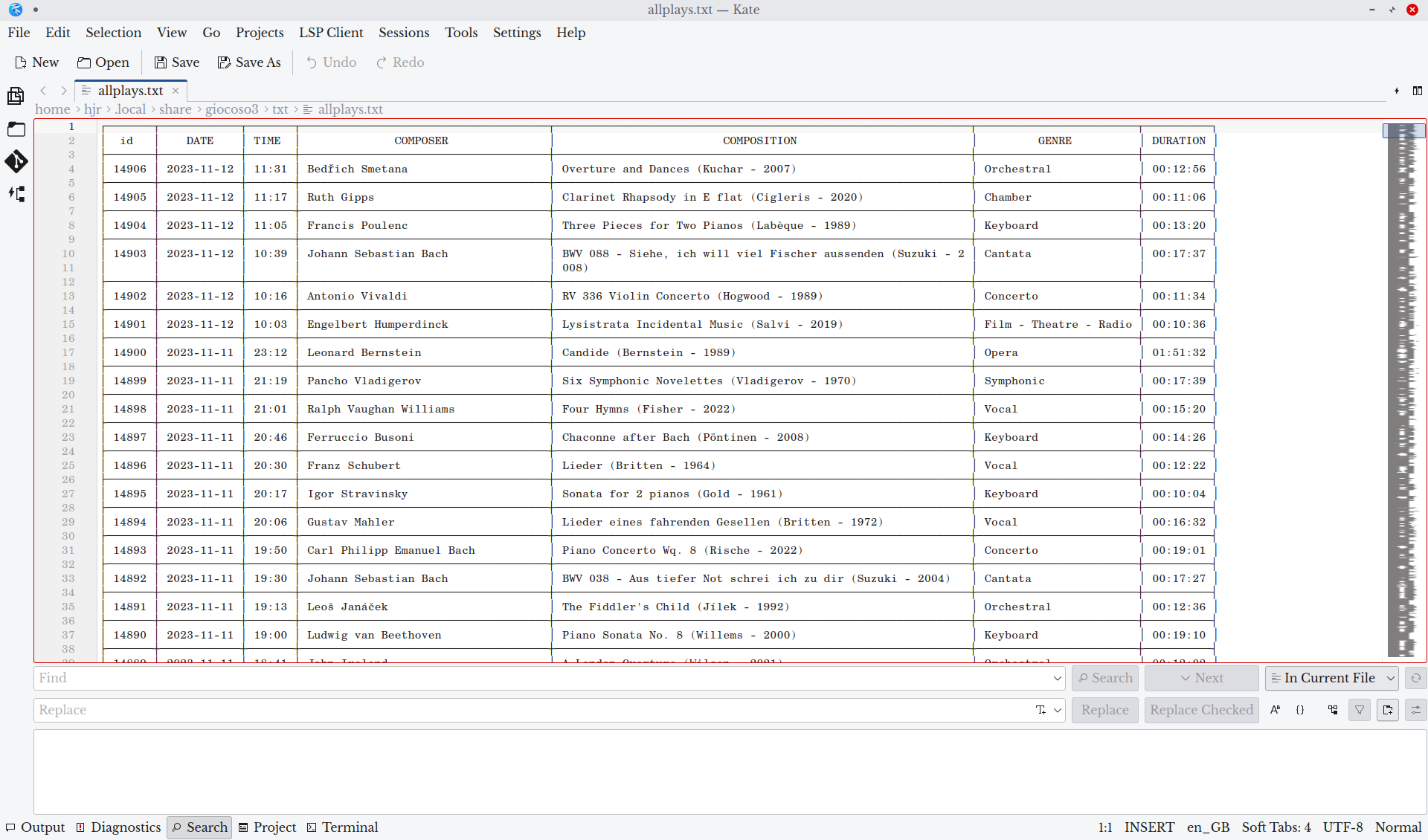
That's the same data, but this time being displayed within the Kate text editor -the one I set as my default before running Giocoso in the first place. Once the report's displayed in Kate (or any other text editor), I can use File → Save As options to write out the report, anywhere I like, to disk. When I close Kate, I am returned to the original display-report-in-Xterm window, where I can tap q to quit and return to Giocoso's main menu in the normal way.
Obviously, global reports being displayed in a browser don't work the same way: you scroll up and down through the report as you'd scroll through any website's text. You can also use the 'Find in Page' feature of your browser to locate a specific record (Ctrl+F works in Firefox, for example). If you wanted a global report exported to a simple text file, without all the HTML code that wraps the data in table borders, just use your browser's 'Save page as' option and select the 'Text files' export option.
Advanced Reporting by SQL
The Reporting menu Option 5 presents a blank text box to you:
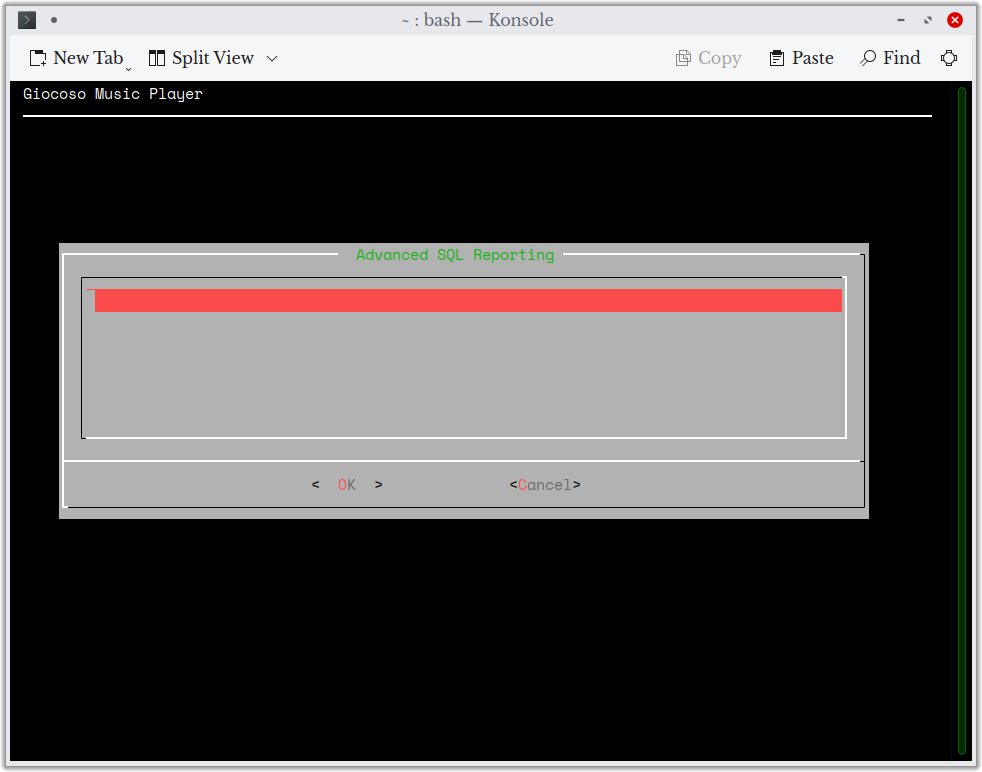
In this text box, you can type any valid SQL select statement. Keywords such as 'update', 'insert' and 'delete' are stripped from any input you provide, so this cannot be used to modify the contents of the Giocoso database, but if you know how to write a SQL select statement, this window lets you submit it and have its results returned to you.
This is not the place to teach you how to write correct SQL, of course, but the simplest construction possible is always in the form of: select something from somewhere. The 'something' is a comma-separated list of column names, and the 'somewhere' is the name of a table. So, for example: select composition from recordings which yields this result:
…at which point you suddenly decide that it might be useful to know who composed each recording:
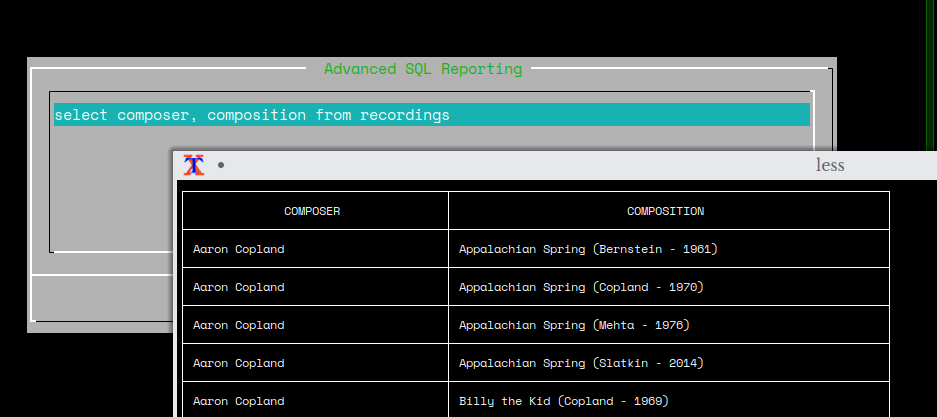
…and so a modified version of the query, with the extra column inserted into the 'something' part of the query can be re-run, with the modified results displayed.
You maybe look at that and think 'the output appears to be in composer-name order, but I prefered the original 'composition-name' order. So, you need to add an instruction to order by something, too:
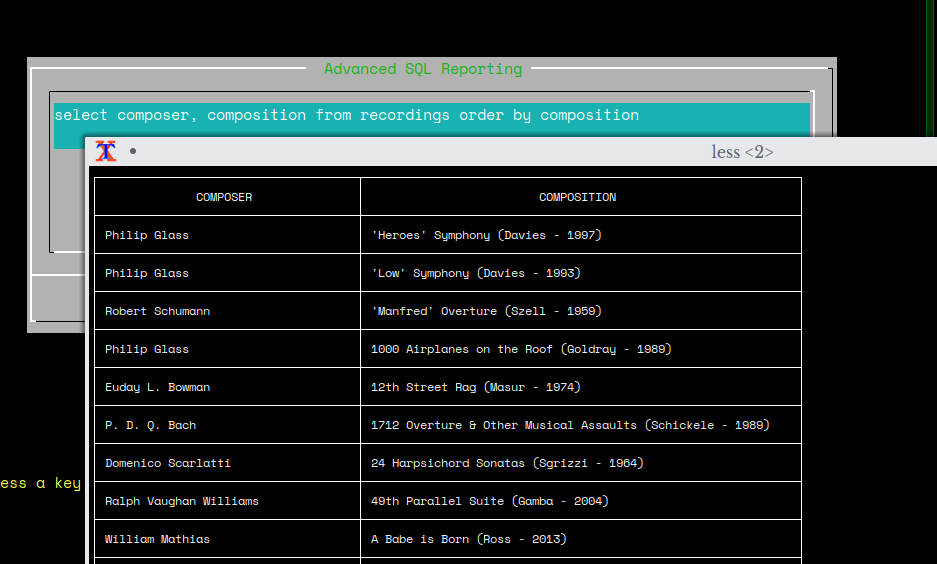
…and now the rows of the report list compositions that start with punctuation, before those that start with a number, before those that start with standard letters.
Of course, queries can also include aggregation and grouping. So, for example, it's possible to look at all the RECORDINGS, group by composer and sum the total duration of each composer's recordings, like so:
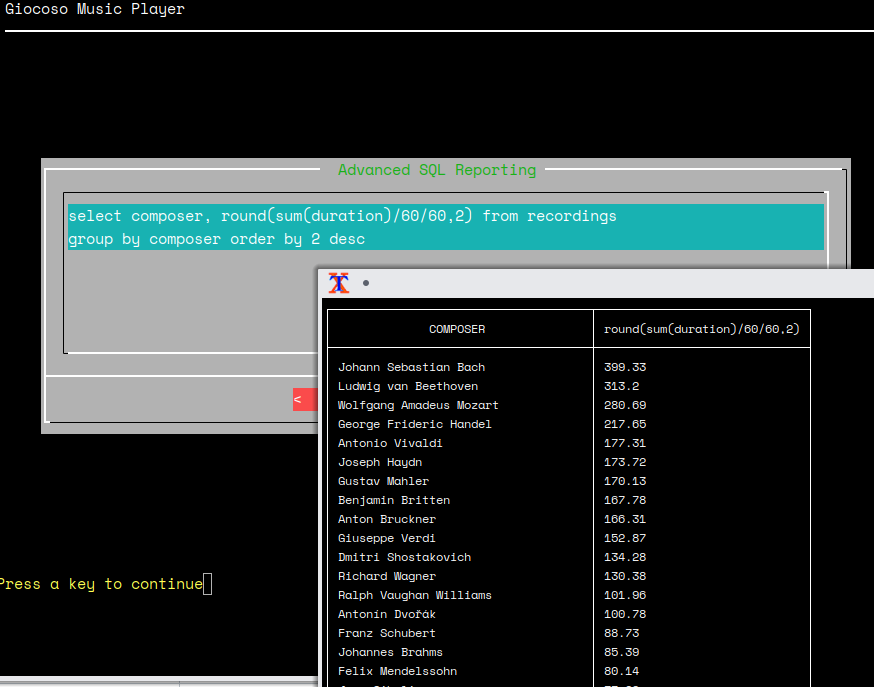
Note how complex queries can be broken up so that consist of multiple lines: Giocoso is happy to handle multi-line queries in this way, fortunately!
Remember: this functionality can be run against a local database, or a remote 'Pro' one… but if you're querying a Pro database, you'll need to use GLOBAL_RECORDINGS and GLOBAL_PLAYS table names, not just RECORDINGS and PLAYS. If you query the wrong table names in the wrong mode, you'll see this sort of response:
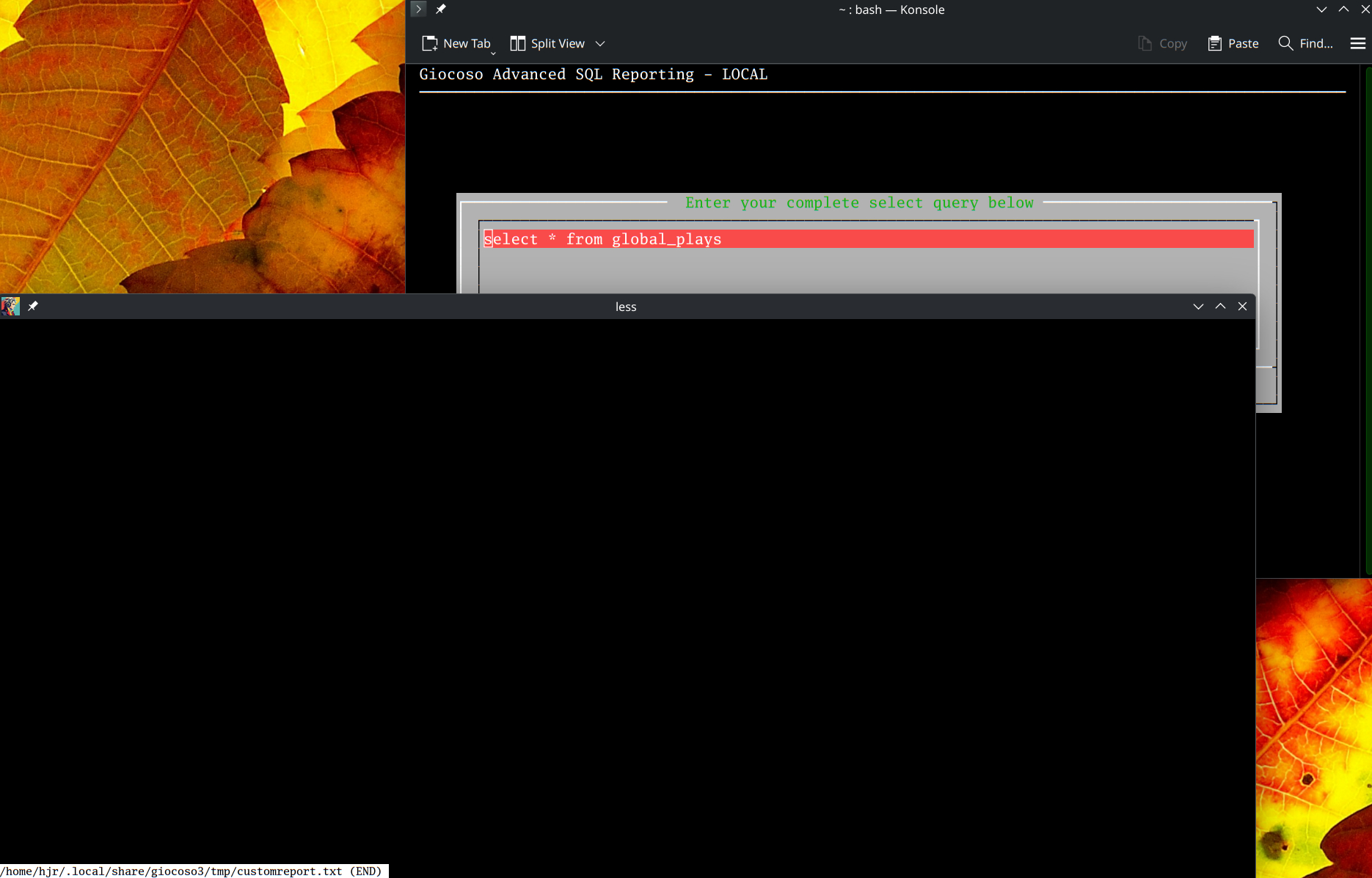
That's me in LOCAL reporting mode, but trying to query the GLOBAL_PLAYS table. The result is the usual local reporting response of opening a new terminal window… but this time the new window remains resolutely blank, because no data from a table that doesn't exist locally can be displayed! And here's the same sort of thing happening in reverse:
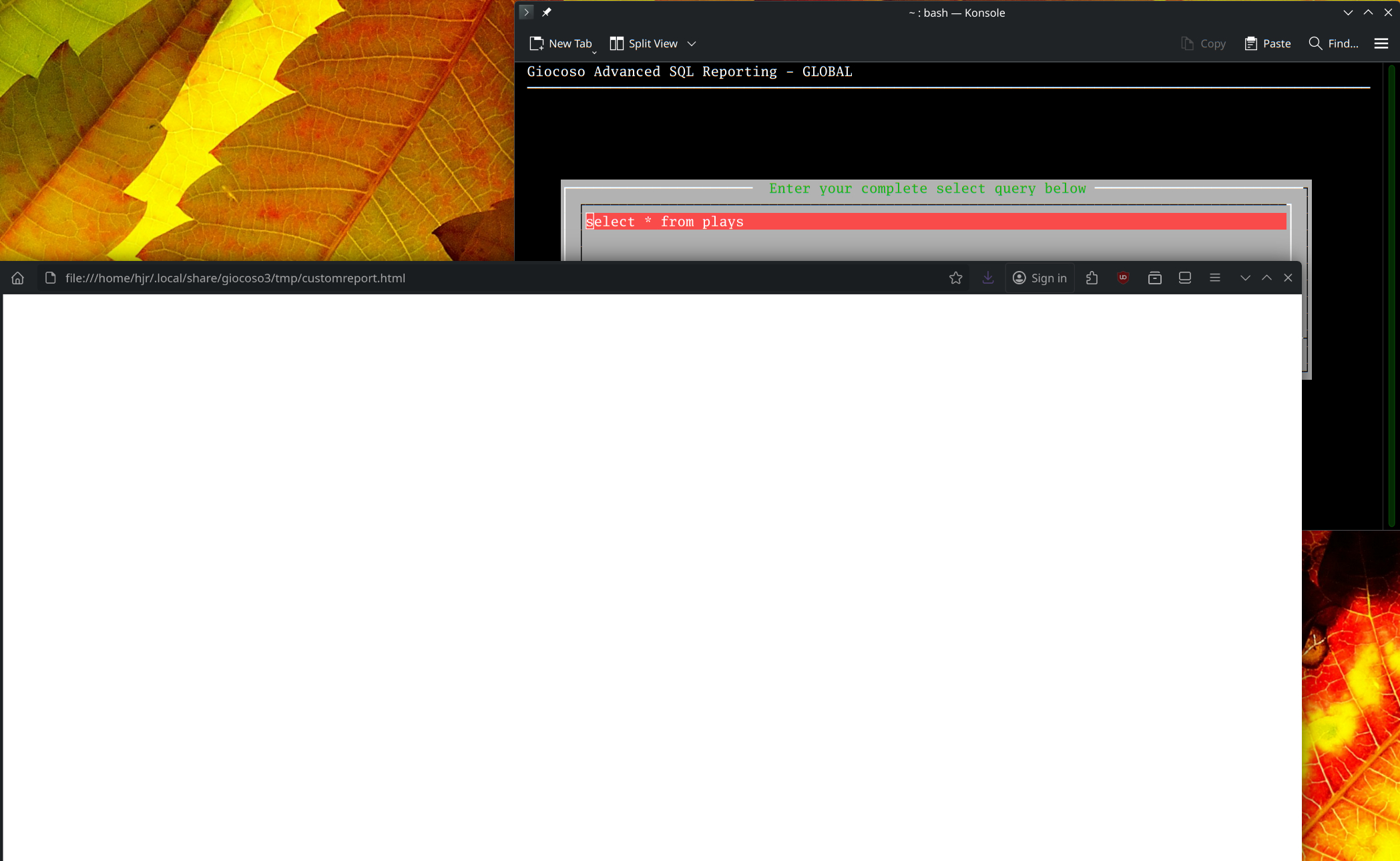
This time I'm clearly in GLOBAL reporting mode, but have queried the local PLAYS table: net result, a blank white page opens, in standard Pro reporting mode, in my default browser. In short, Advanced Reporting by SQL works in both Local and Pro modes, but only in one mode at a time …and it's up to you to remember the right table names that apply in each case.
Report Mode Switching
It is entirely possible that you run Giocoso in Pro mode for day to day use, but suddenly get the urge to query the local database for its own, unique plays (for example).
Should you ever wish to do this, a toggle switch is provided under the Pro menu, Option 9. Obviously, being a Pro menu option, you'll only ever see this option if you've filled in the IP address of your remote Giocoso Pro server (using the Administration menu, Option 2). Doing that means, by definition, that you're now running Giocoso in Pro mode.
At that point, Option 9 on the Pro menu will read, “Switch reports to local mode”. Taking that option will then immediately throw you onto the Reporting menu: anything you now report on will be from the local database only:
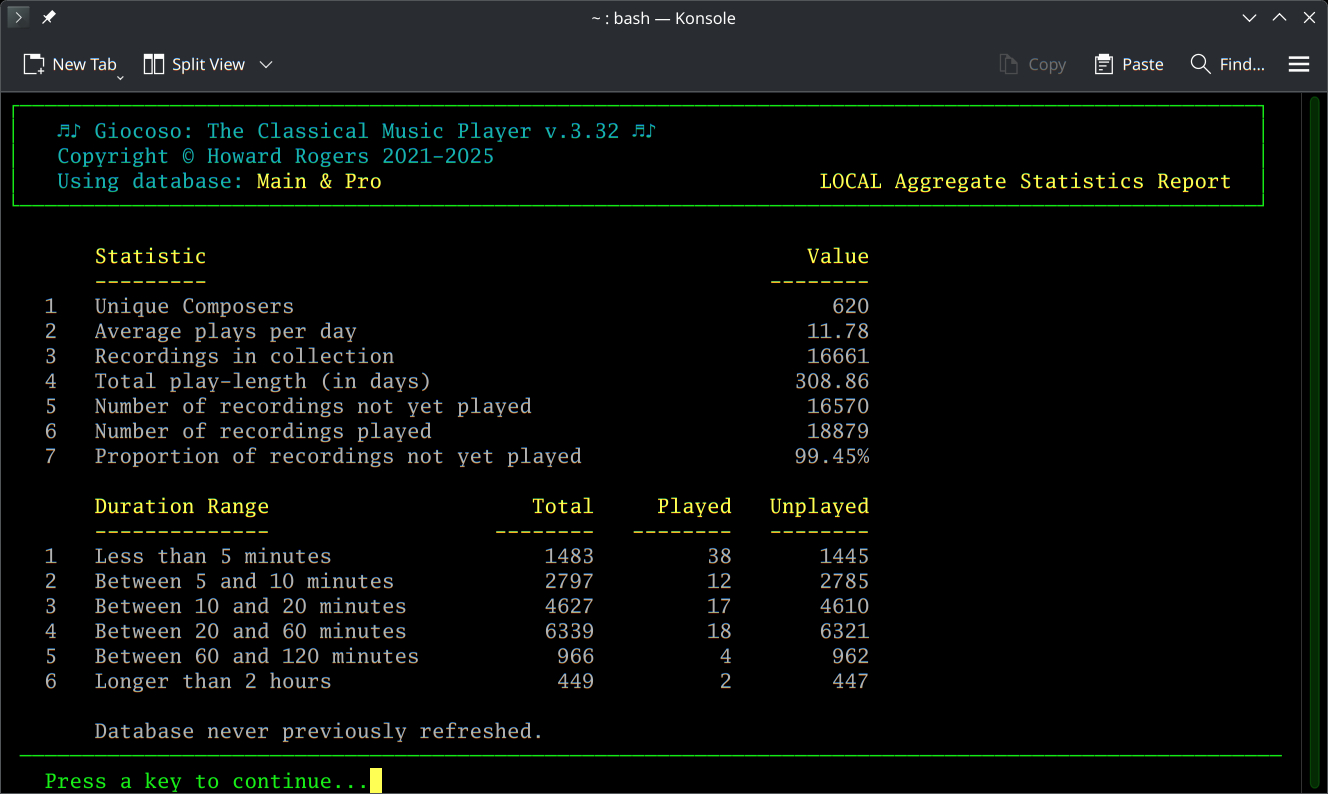
At the top of this screenshot, you'll see Giocoso declaring that it's “Using database Main & Pro”… so we're definitely in Pro mode… and yet, also at the top of the screen, we see we're reporting the “LOCAL Aggregate Statistics Report”. The lack of hyphens and plus signs around the displayed data also tells you: this is a local report produced in Pro mode.
You'll stay in local reporting mode until you either quit Giocoso completely and re-launch it; or until you re-visit the Pro menu and once again take Option 9… which will now be reading “Switch reports to global mode”.
Since the option to switch reporting modes only exists under the Pro menu, I hope it's obvious that you cannot take a local-only Giocoso instance and switch it into reporting globally (because the entire Pro menu is invisible to Giocoso instances running in non-Pro mode).
Browsing the Database with a GUI
A final data querying tool is made accessible by the Reporting menu: browsing the local database in a GUI tool, called SqliteBrowser. Note that this tool is nothing to do with Giocoso and Giocoso doesn't install it as part of its own installation routine. It's a third-party tool produced to make working with Sqlite databases easy which you can install yourself, if you would like to -but it's entirely optional to do so. If you don't install it, then you can tap the 'B' key (or the 'b' key: case doesn't matter) whilst sitting on the Reporting menu until the cows come home: nothing will happen. But if it is installed, then tapping 'B' will produce this sort of response:
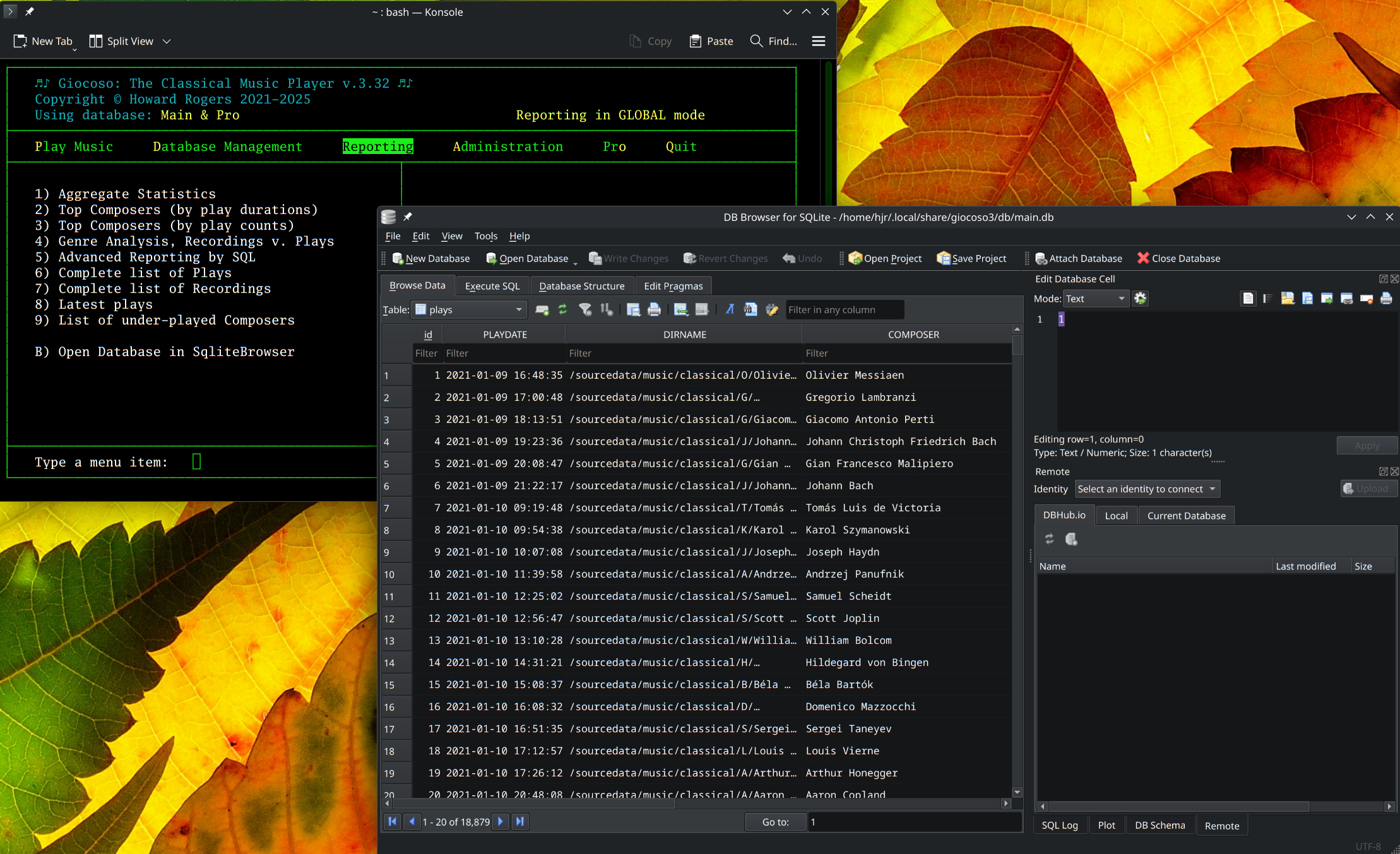
A new window opens in which the Sqlite Browser program runs: notice from the window's title bar that it has opened the local database sitting on my hard drive, even though I'm allegedly in GLOBAL reporting mode, according to Giocoso. This is an inherent limitation: it doesn't matter whether you're running in Pro or Local mode, Sqlitebrowser can only query local, sqlite databases (not the MySQL database that a Pro database consists of).
I will not spend time here explaining how to use the Sqlite Browser tool itself: it's an advanced tool and you should only really use it if you know what you're doing… and if you know what you're doing, you don't need me to teach you! Just be warned: the 'browser' has full read and write access to the local Giocoso database, so if you want to use it to edit or delete data, you can do so. If you really wanted to, you can use it to completely screw around with your Giocoso local database and make it unusable… but I wouldn't advise it. It's a dangerous tools in incompetent hands, therefore… but also a very useful one in competent ones!
Incidentally, if you are in Global mode and wanted an equivalent (and equivalently dangerous!) GUI tool for working with the MySQL/MariaDB global database, I can recommend DBeaver, which has the same sort of querying and modifying tools for all sorts of databases, but especially for the type that Giocoso Pro uses. It's again not something Giocoso ever installs for you, but it's available in most distro's standard package repositories, so shouldn't be difficult to install (sudo apt install dbeaver will do it on Debian/Ubuntu for example). No shortcut to launch DBeaver from within Giocoso is provided, however: running it and getting it to open the Giocoso Pro database is a matter left entirely to your own database administration skills!
| Back to Software Home | Back to Giocoso Documentation Home |