Giocoso Version 3.37 Released
 I have just released (on time!) a new version of Giocoso: it now moves to version 3.37. It is a fairly significant release for one main reason: the default music search algorithm had a fatal bug in it, which I discussed at length in a previous blog piece. This release fixes that logic error, resulting in much more music qualifying for randomised selection than before.
A less meaningful (but perhaps more fun!) enhancement to the program is that you can now adjust its visual components' colours. If you don't like the default cyan logo text, you can change it to magenta instead, for example. I noticed that some users don't run in jet-black terminal sessions like I do: this lets them make Giocoso usable even in light-coloured terminals.
I regret that this update is a bit messy to implement. You should certainly start by taking the usual Administration menu, Option 1 to obtain the newer software and providing the sudo password when prompted. Unfortunately, the result of that upgrade will look something like this:
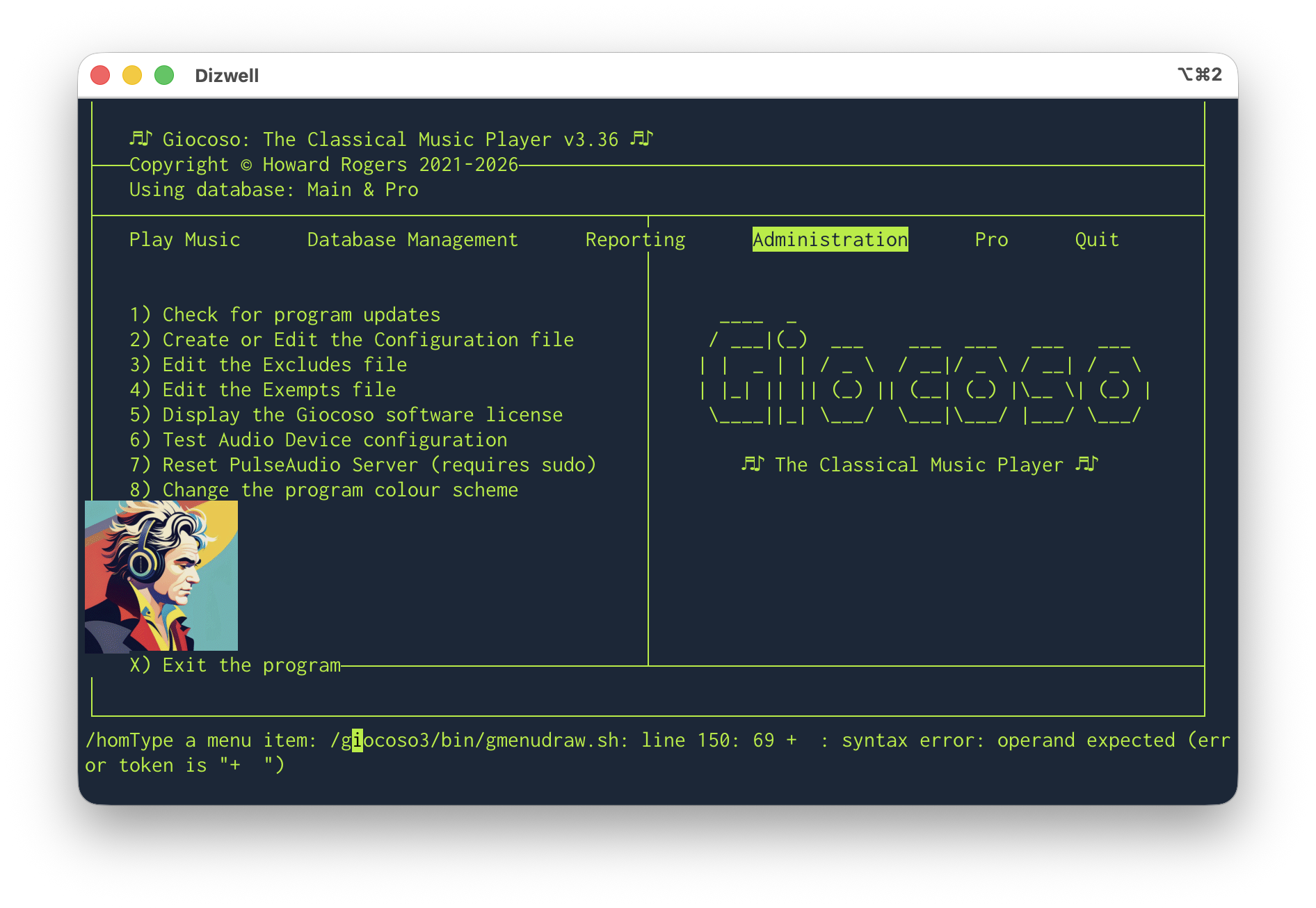
Error messages visible from the operating system, a Beethoven image appearing in completely the wrong place, all text one colour and the wrong colour at that… yuck! Fortunately, it's easily fixable: just take the Administration menu, Option 2 to edit the configuration file. Just click the [OK] button to cycle through all the pages of the dialog. When you click [OK] on the last of the pages, you'll be returned to the main menu with everything looking perfect:
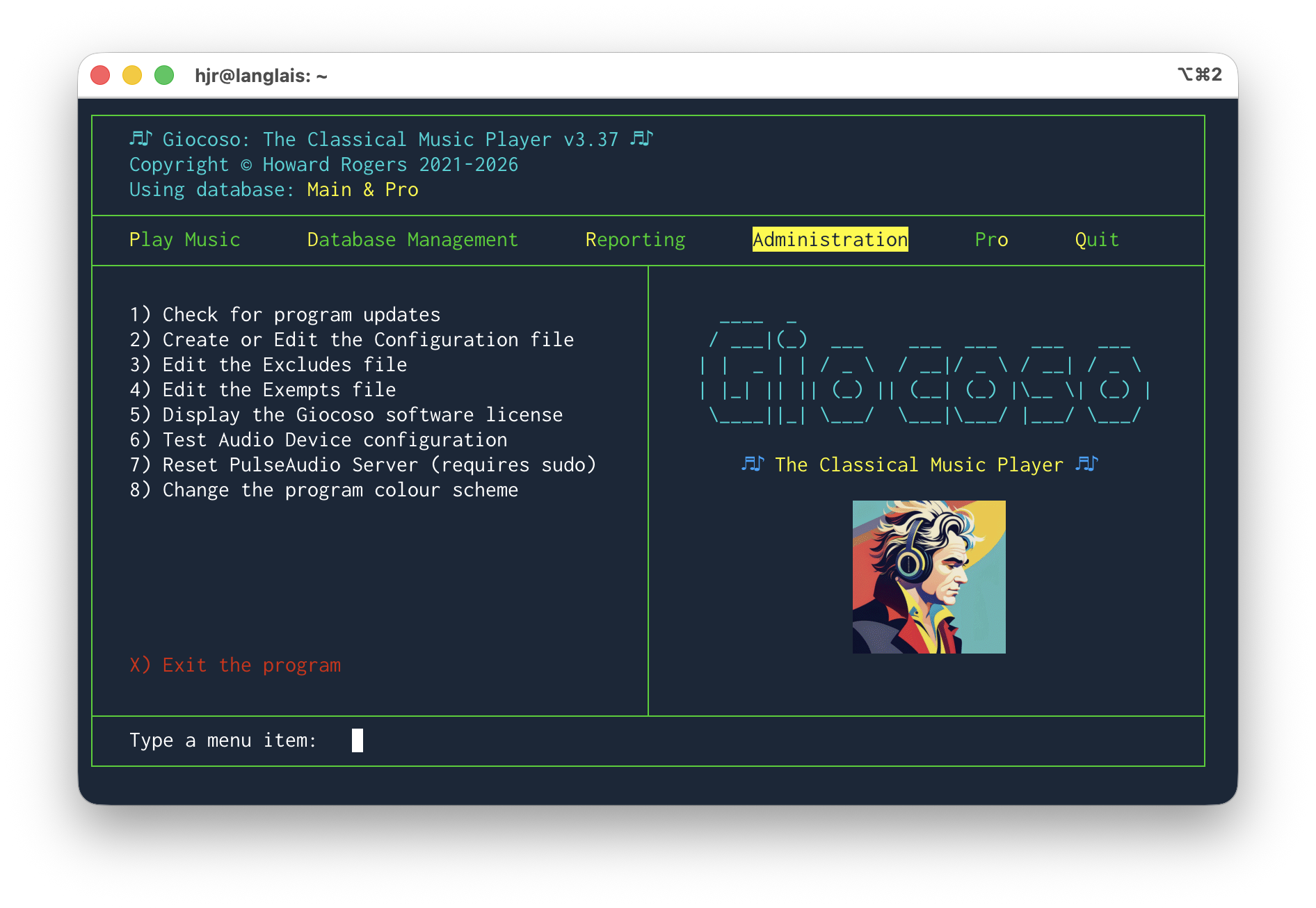
Added immediately after the release: It is possible that you now won't see visual mayhem on quite this scale after an update: a couple of tweaks to some code has tackled most of these issues out-of-the-box, I believe. But it does no harm to warn you of what can happen and how to fix it, especially as even now, I'm pretty sure you'll be needing to adjust the size of that Beethoven logo: which still requires a visit to the Administration menu, Option 2 and an adjustment to the 'Size of the Program Logo' setting.
The temporary problem is caused by your existing configuration file not having the new colour codes in it: merely editing the file and doing nothing causes default codes to be added to the file, after which the program displays normally. You could then use the new Administration menu, Option 8 to modify the program colour settings to something that is non-default and more suitable to your needs.
Full details about what's in the new release are available, as always, from the Giocoso changelog.
That concludes the bug-fixes and tweaks to all three of my music-related bits of software: I rather suspect that they will all now 'go quiet' for a good few month, unless someone gets in touch to report a bug or two that I haven't encountered! Here's to a less code-filled few months!
Semplice Version 2.13 Released
 A little later than intended, but I've just released the new Version 2.13 of Semplice. It's quite a substantial release: the new graphical look and feel is perhaps the most obvious one, along with the ability to set the colours for the individual display elements of the program interface. Under the hood, some fairly significant bugs got squashed, too, however: the biggest ones are mostly to do with making Semplice a first-class citizen on a macOS installation. In particular, macOS's handling of Unicode characters that involve accents is, er… “unpredictable” and the new version of Semplice brings some order to the chaos! Full details, as always, are available from the Semplice Changelog.
This update is, unfortunately a 'breaking update', meaning that simply taking the Administration menu, Option 3 will certainly upgrade to the latest Semplice release, but it will look like a disaster when you're done and some important things will be missing (which won't be missing if you were doing a fresh install, by the way).
So, to ensure the unpleasantness is kept to a minimum, you need to do a bit more than just taking that 'check for program updates' menu option. The first thing you need to do (again, only if you're upgrading an existing Semplice installation) is to install some extra packages which are new dependencies that Semplice now has and didn't before:
- Fedora: sudo dnf install libsixel libsixel-utils kitty
- Mint: sudo apt install libsixel-bin kitty
- AlmaLinux10: sudo dnf install kitty
- Suse: sudo zypper install libsixel1 libsixel-utils kitty
- Arch: sudo pacman -S kitty libsixel
- Debian/Raspbian: sudo apt install libsixel-bin kitty
- Ubuntu: sudo apt install libsixel-bin kitty
Once that new software is installed, you can proceed to do the standard Semplice upgrade procedure (i.e., take the Administration menu, Option 3 and supply the sudo password when prompted). The upgrade will appear to fail:
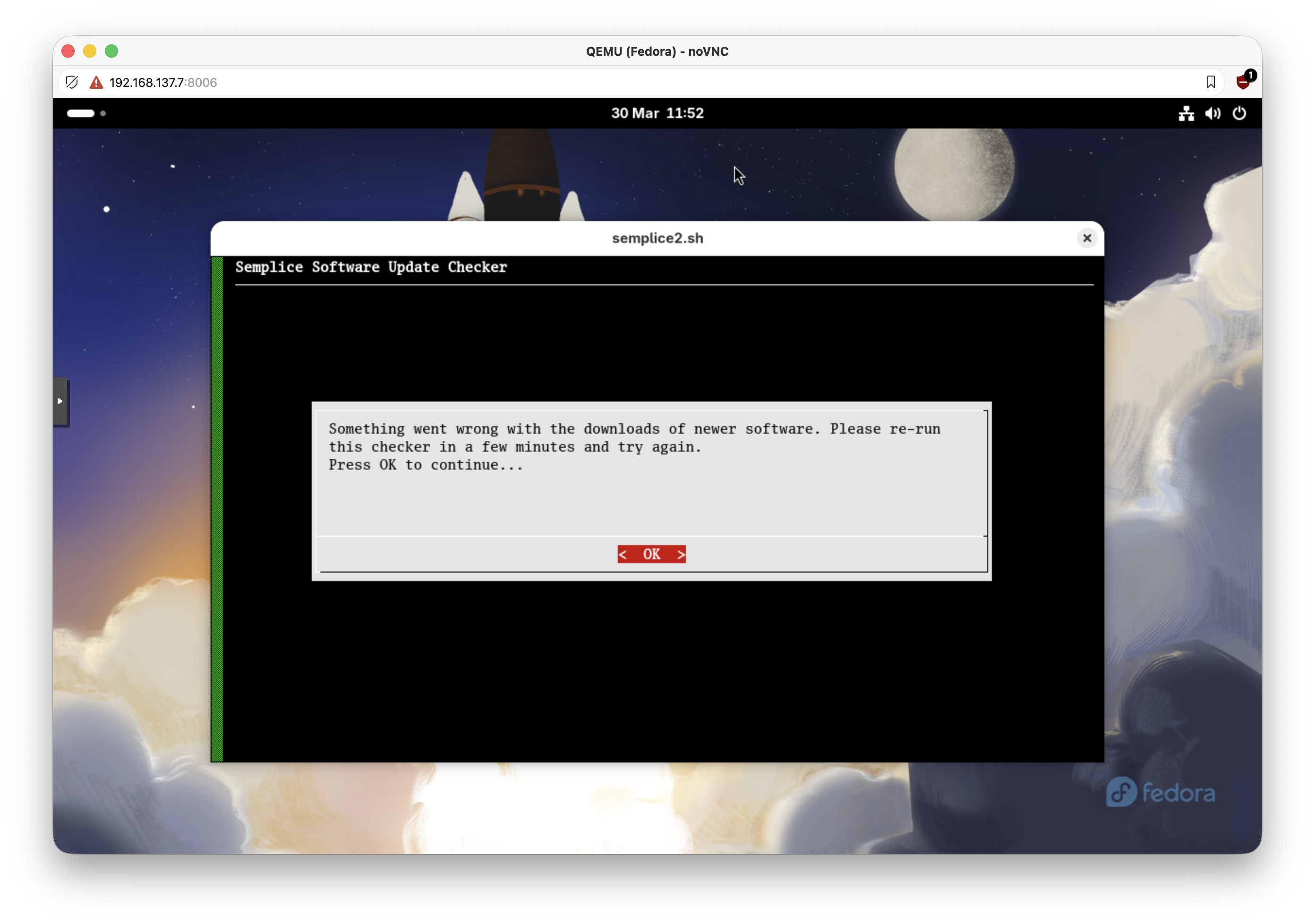
Don't worry about that: just press [Enter] or click OK to accept the message: you'll be returned to the main program screen, which will look ghastly:
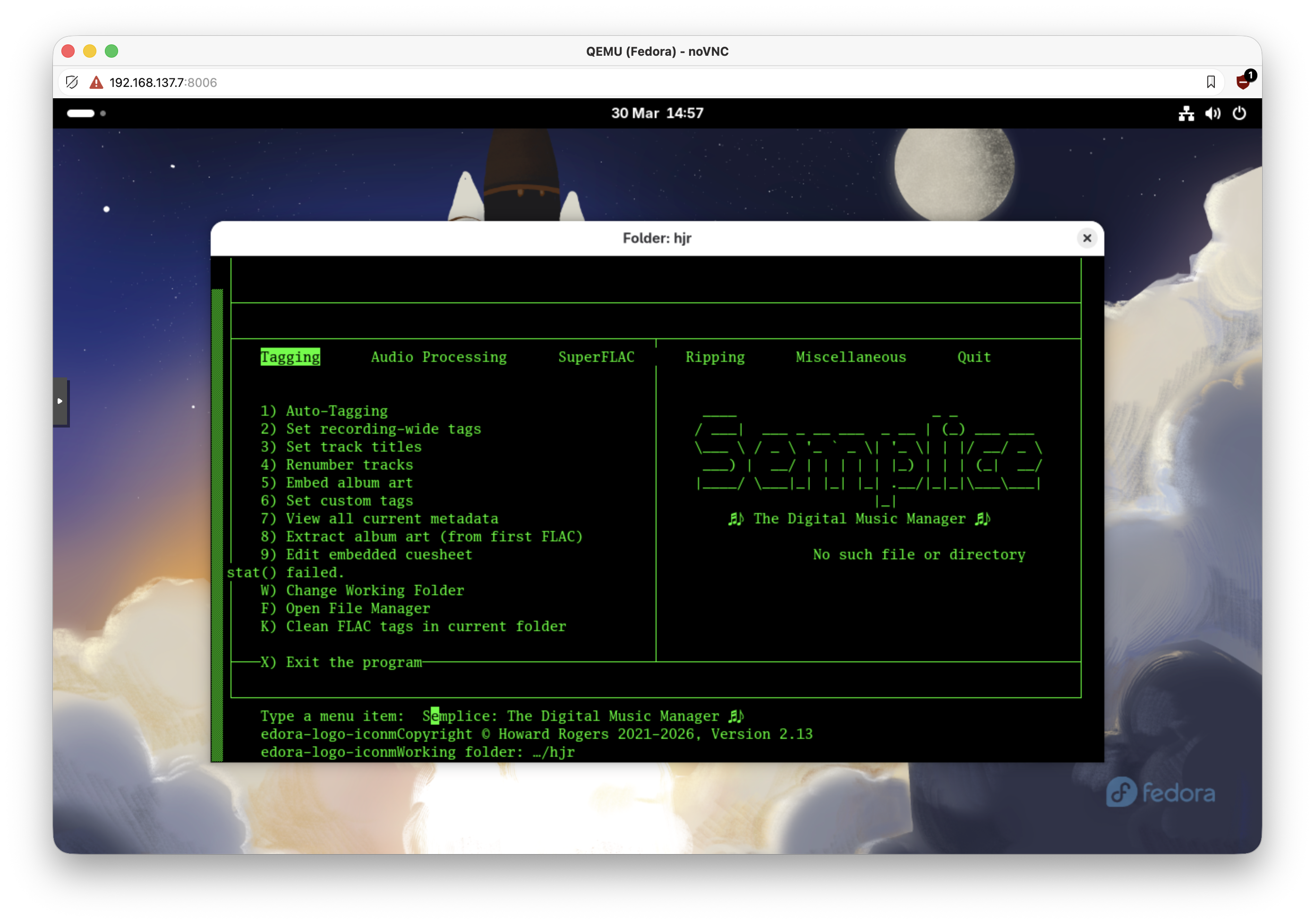
Don't worry about this, either. Just take the Miscellaneous menu option once more, Option 1 to edit the configuration file and then keep pressing [Enter] to step through every page of options without changing anything. When you press [Enter] on the last page of the configuration options, you'll return to the main program menu and see this:
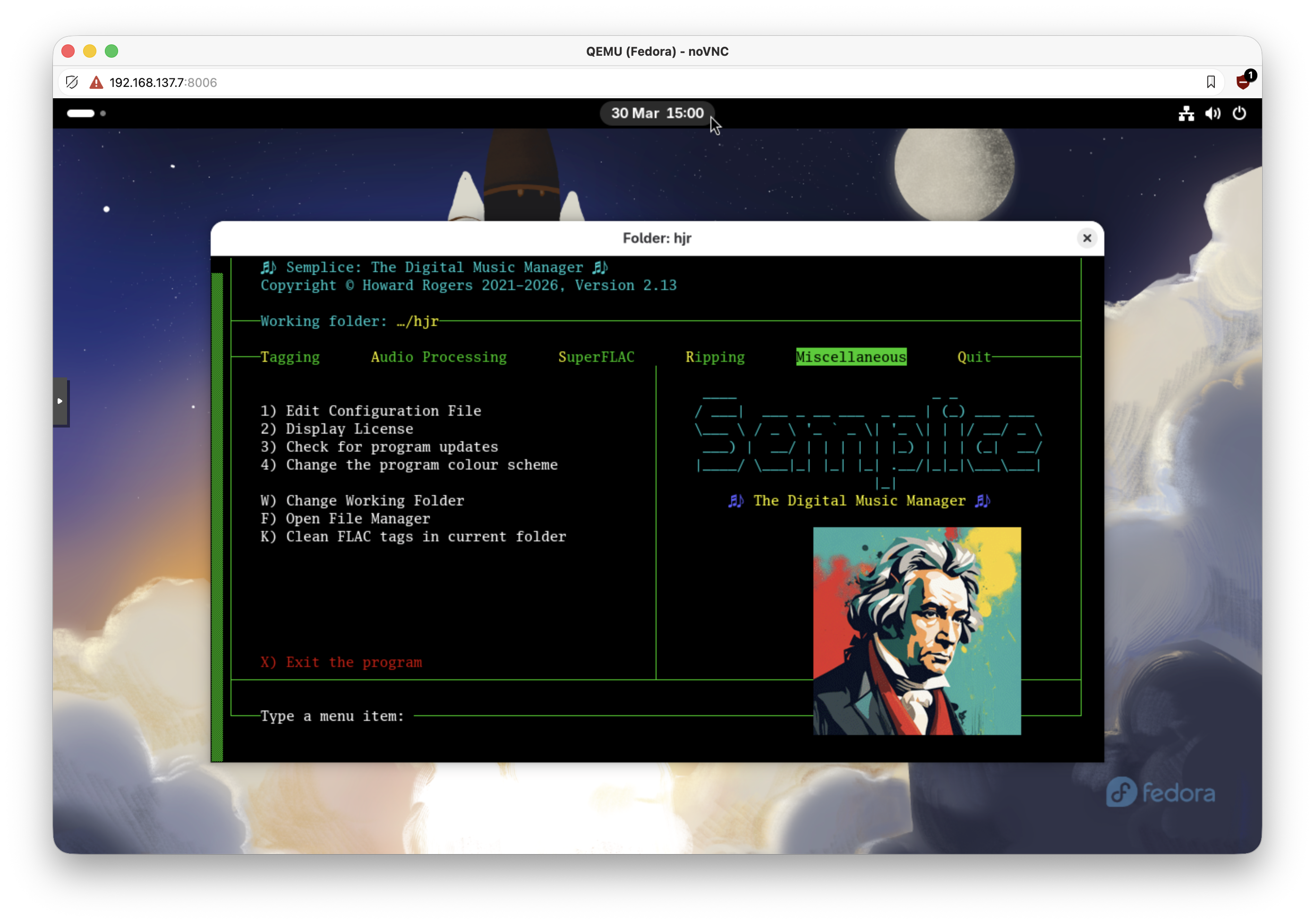
At this point, the only real problem remaining is the size of the 'grumpy Beethoven' logo, over on the right of the program display: go back into the Edit Configuration File option once more. On the last page, you'll find a set of four new configuration options:
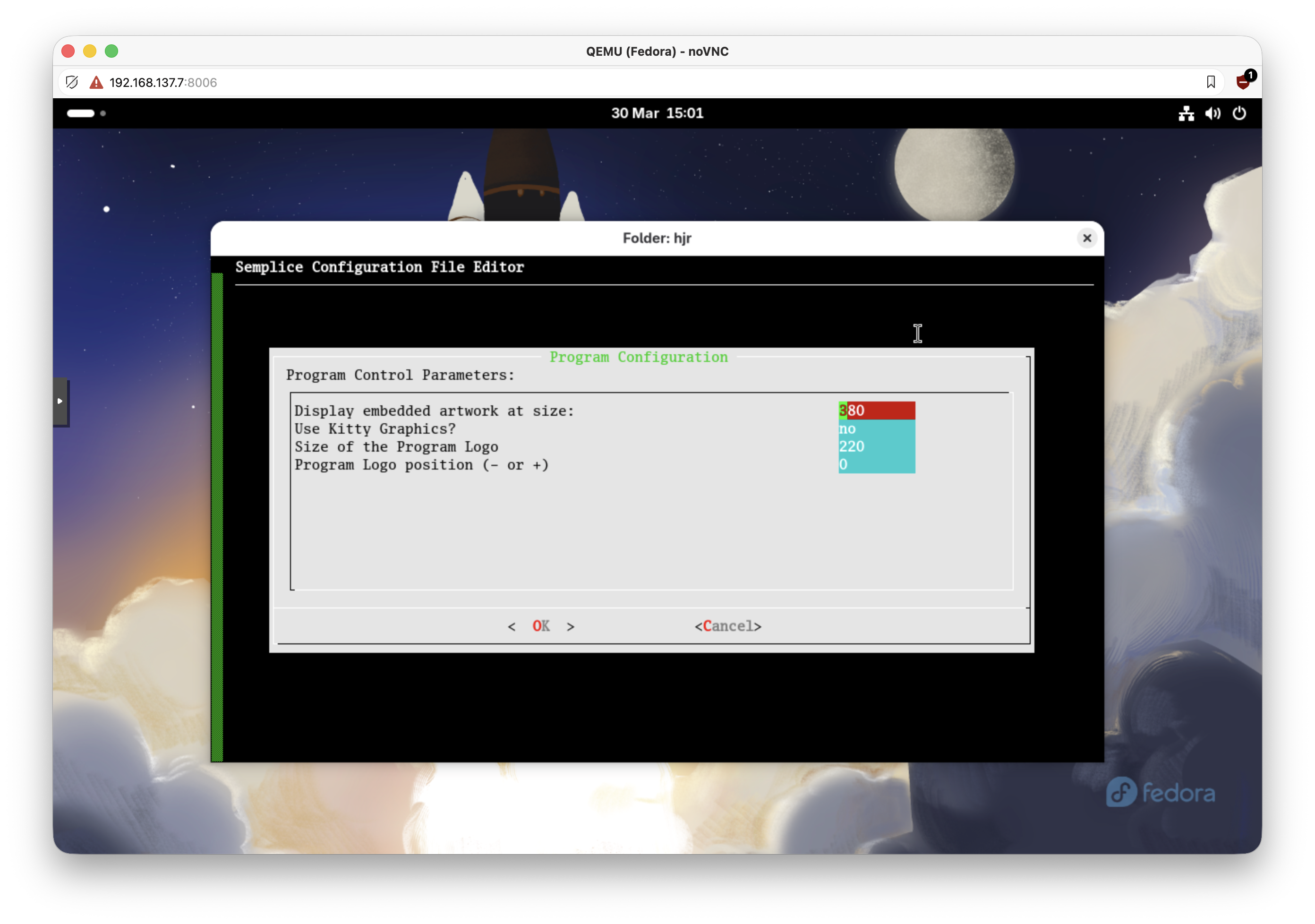
Set the “size of the program logo” to something smaller or larger, depending on how things are appearing on your screen. Use the “program logo position” parameter to supply a negative (move left) or positive (move right) number to adjust the precise position of the logo. For my Fedora installation, I found a size of 110 and a position of 0 worked fine, but your mileage might vary:
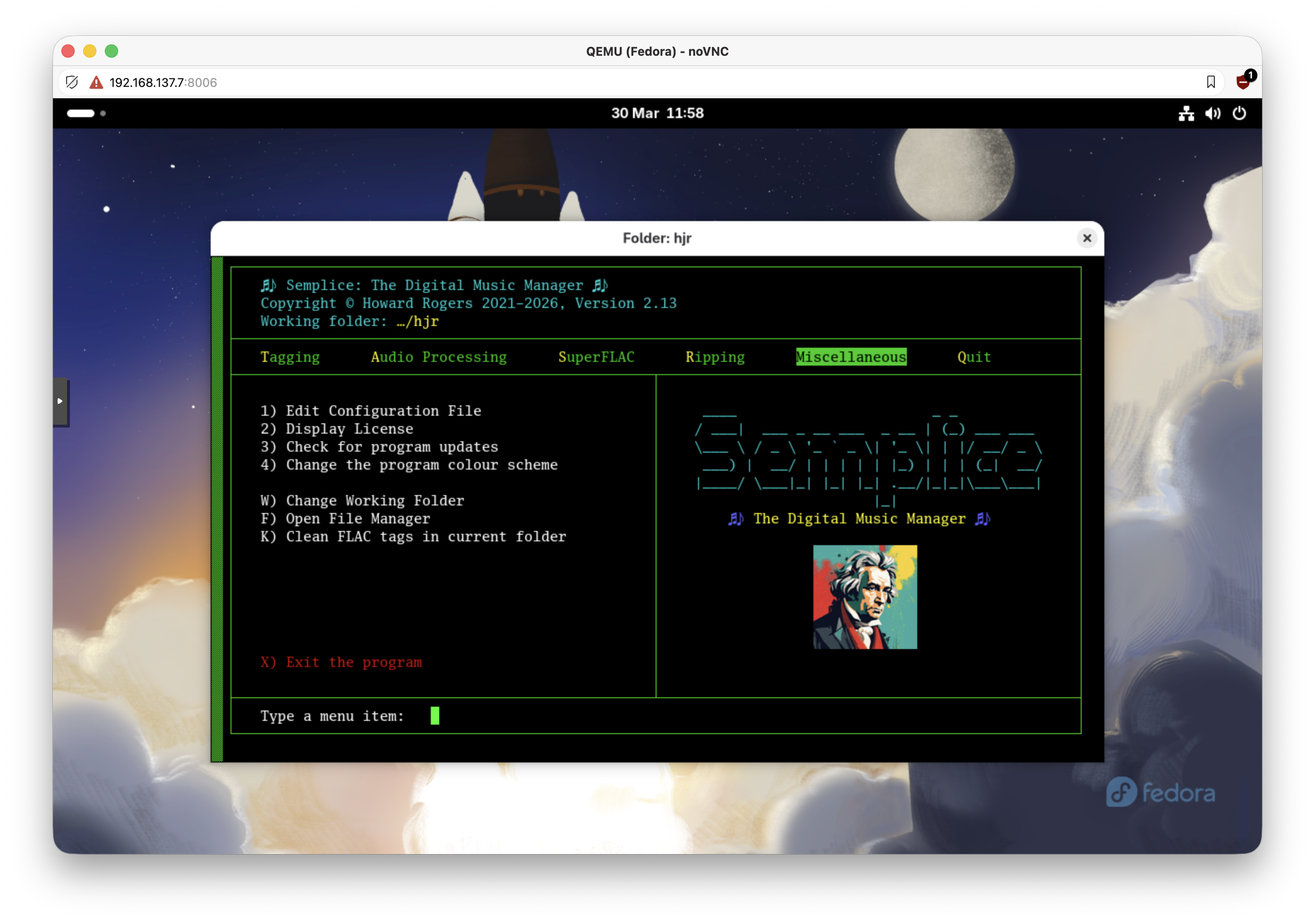
Once the display looks fine, your upgrade is complete. I apologise for the fact that this upgrade is non-trivial and requires a bit of manual intervention on your part beforehand: I try to keep these 'breaking updates' to a minimum and I hope this will be the last one for a good long while!
Finally, note that on AlmaLinux, the terminal type that the Semplice launcher runs Semplice in cannot display graphics: that's why these instructions mentioned installing the Kitty terminal, which can display those graphics (this may be true for other distros, too). It is accordingly recommended that you use the Kitty terminal for all Semplice operations on that platform in future. If you want to adjust the program launcher so that it invokes Kitty automatically, you'll need to edit the appropriate launcher file. That's located in $HOME/.local/share/applications/semplice.desktop. So:
nano $HOME/.local/share/applications/semplice.desktop
Change the “Exec” line of the file. At the moment, it's reading something like:
Exec=/usr/bin/xterm -xrm 'xterm*iconHint: /home/hjr/.local/share/semplice2/art/sempliceico.xpm' -bg black -fg green -geometry 103x28 -fa 'Luxi Mono:style=Regular' -fs 11 -ti 340 -tn xterm-256color -e semplice2.sh
Change that to read (rather more simply!):
Exec=/usr/bin/kitty -e semplice2.sh
You may also want to configure Kitty generally to display things in a nicer fashion than it does by default. That's done by editing the $HOME/.config/kitty/kitty.conf file. My own is very, very simple:
font_family      family='Luxi Mono' postscript_name=LuxiMono
font_size 12.0
…but many more configuration options are available to anyone with time to invest in such things!
Niente Version 5.05 Released
 I have just released (almost on-time!) the latest version of Niente: version 5.05. The changelog, as ever, has all the details, but the short version is that there was a fairly nasty bug concerning Niente and ReplayGain, which is now fixed; and there's been a whole truck-load of flim-flammery concerning Niente's visual appearance. The story there is, basically, to bring it in-line with how all my other software works (or is about to work): colour selection and a graphical logo.
Unfortunately, these changes mean that the upgrade process is not as simple as using the Administration menu, Option 5. It's a little bit more convoluted than that! Here goes:
First, make a note of all your existing configuration settings. We're going to wipe these shortly and you'll need to be able to put them back later. So take a screenshot now of Administration menu, Option 5 and or otherwise note the contents of that configuration setting: we're going to need to use that as a template later.
Next, you need to ensure that both libsixel and kitty are installed, so that Niente can do its new 'graphical logo thing'. How you do that depends on your distro:
- Fedora: sudo dnf install libsixel libsixel-utils kitty
- Mint: sudo apt install libsixel-bin kitty
- AlmaLinux10: sudo dnf install kitty
- Suse: sudo zypper install libsixel1 libsixel-utils kitty
- Arch: sudo pacman -S kitty libsixel
- Debian/Raspbian: sudo apt install libsixel-bin kitty
- Ubuntu: sudo apt install libsixel-bin kitty
I should explain that I cannot find a way to install sixel graphics support on AlmaLinux 9 or 10, so we don't bother and instead install the Kitty terminal, which is a completely different ball-game that still manages to install support for doing in-terminal graphics. Note that this means either that 1) you can't use 'gnome terminal“ to run Niente going forward; or 2) if you insist on using gnome-terminal, you're not going to see the 'beethoven looking grumpy' logo.
Anyway, once those new packages are installed, you fire up Niente and take the Administration menu, Option 5: Check for software updates. Follow the prompts and the upgrade process should complete without error… except that you're very likely to see variations on this unholy mess at the end of it:
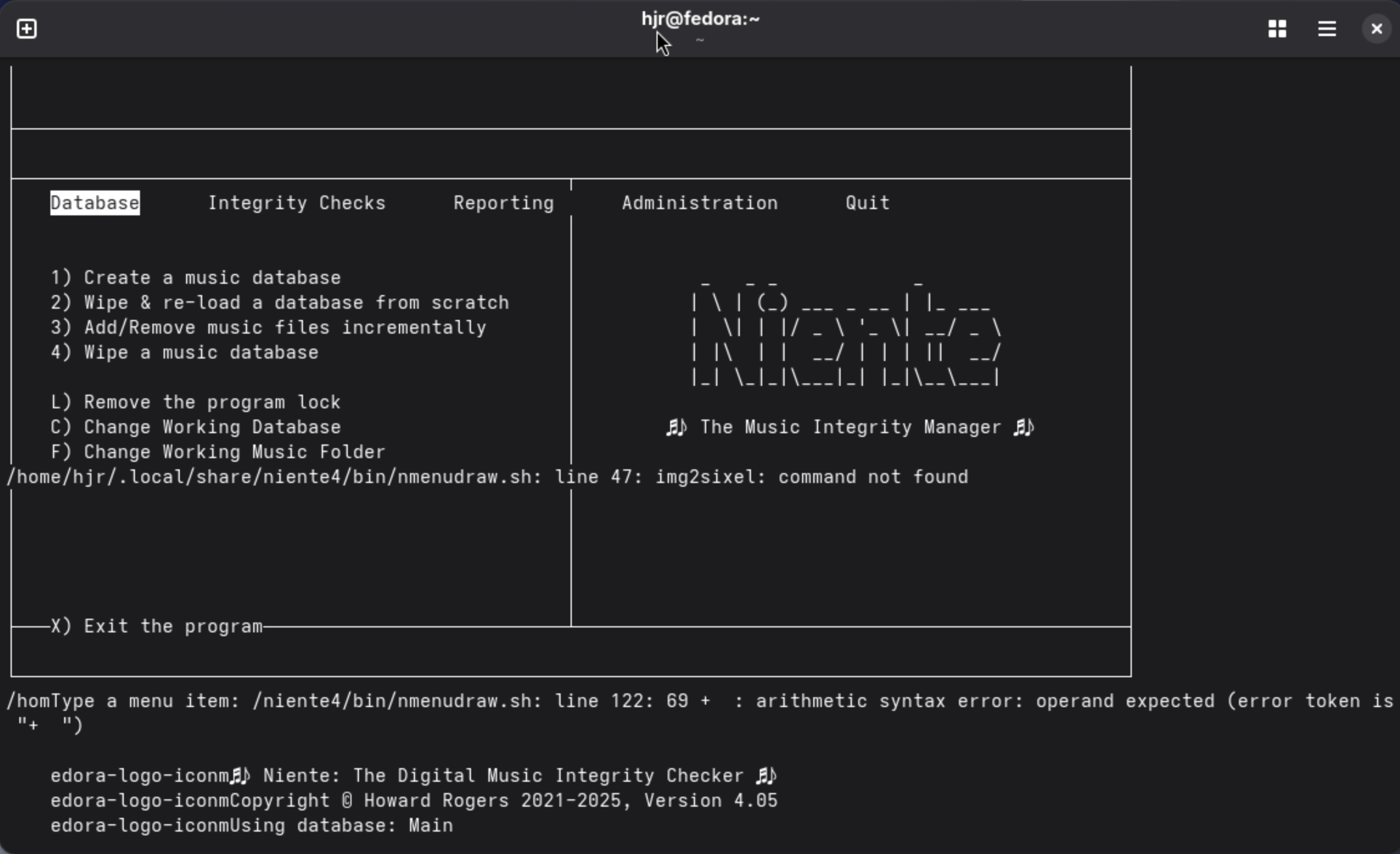
Don't panic! At this point, exit Niente (tap 'x') and then issue this command:
rm -f $HOME/.local/share/niente/txt/niente.conf
That deletes your specific persistent configuration file, because the absence of such a file triggers Niente to create a default one, containing all the new parameters that the new version expects to find. Of course, this also means that the new configuration file will be missing all the really important personalised settings you may have set previously: that's why you were told to make a note or screenshot of those existing settings before we started! You did do that, didn't you?!
Now you can re-launch Niente (on AlmaLinux, this must be from within Kitty): you will likely be warned that your new, default configuration file mentions a database called “niente” (the default name), but that no such database exists:
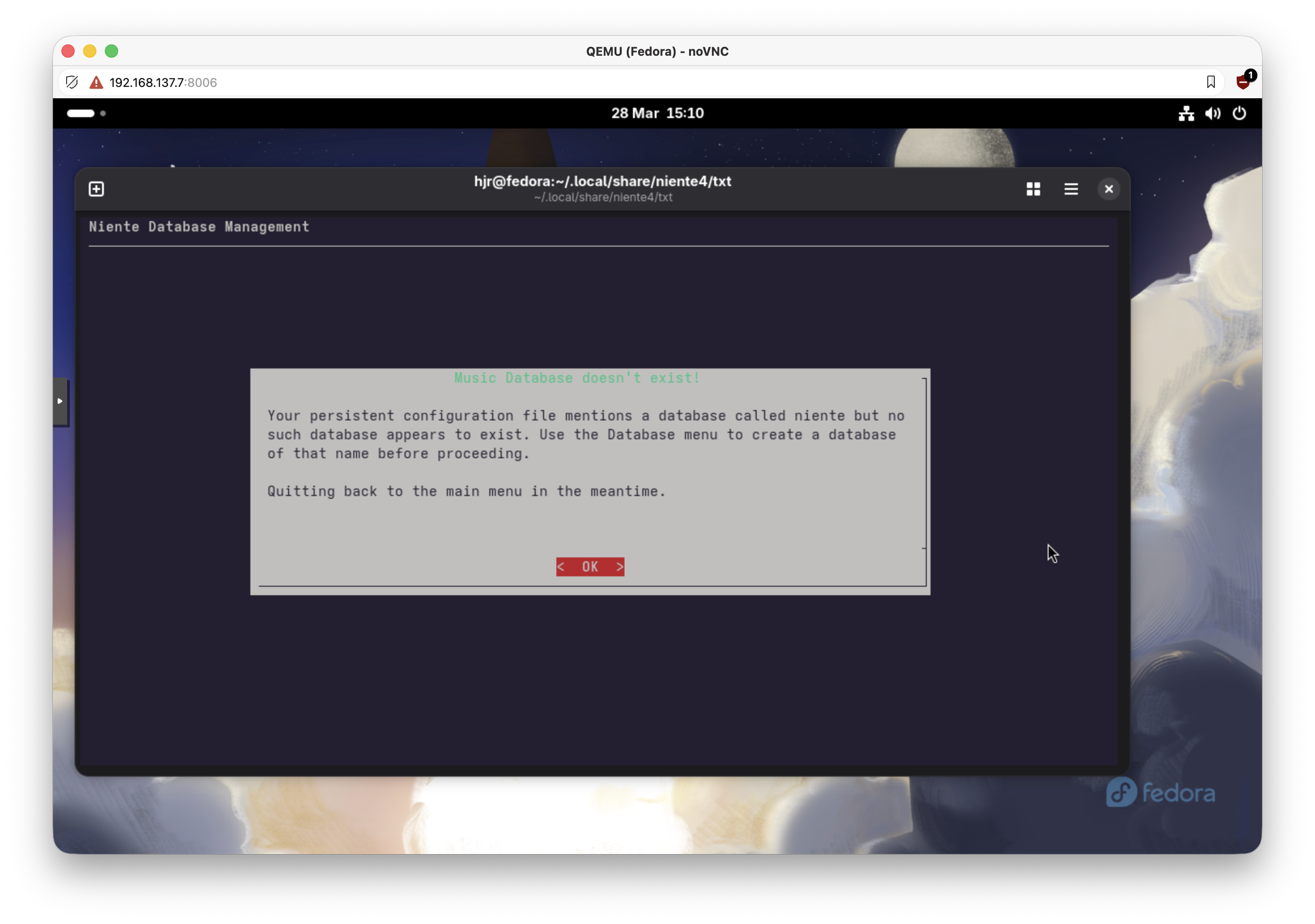
Again, this is the consequence of having deleted your original configuration file. It's expected, so click [OK] and Niente will launch in its new 4.05 guise. Immediately visit the Administration menu and take the Edit Configuration File option. Put back all the 'correct' configuration file options you previously made a note of, such as the default database name. Make sure you add in values for 'Preferred browser', for example. If you are on AlmaLinux, you must switch on “Use Kitty Graphics”: set it to a value of “yes”. Quit Niente once more and then immediately relaunch into it: you should now find that you're viewing Niente correctly, with colour, and with a colourful logo in the left-hand pane:
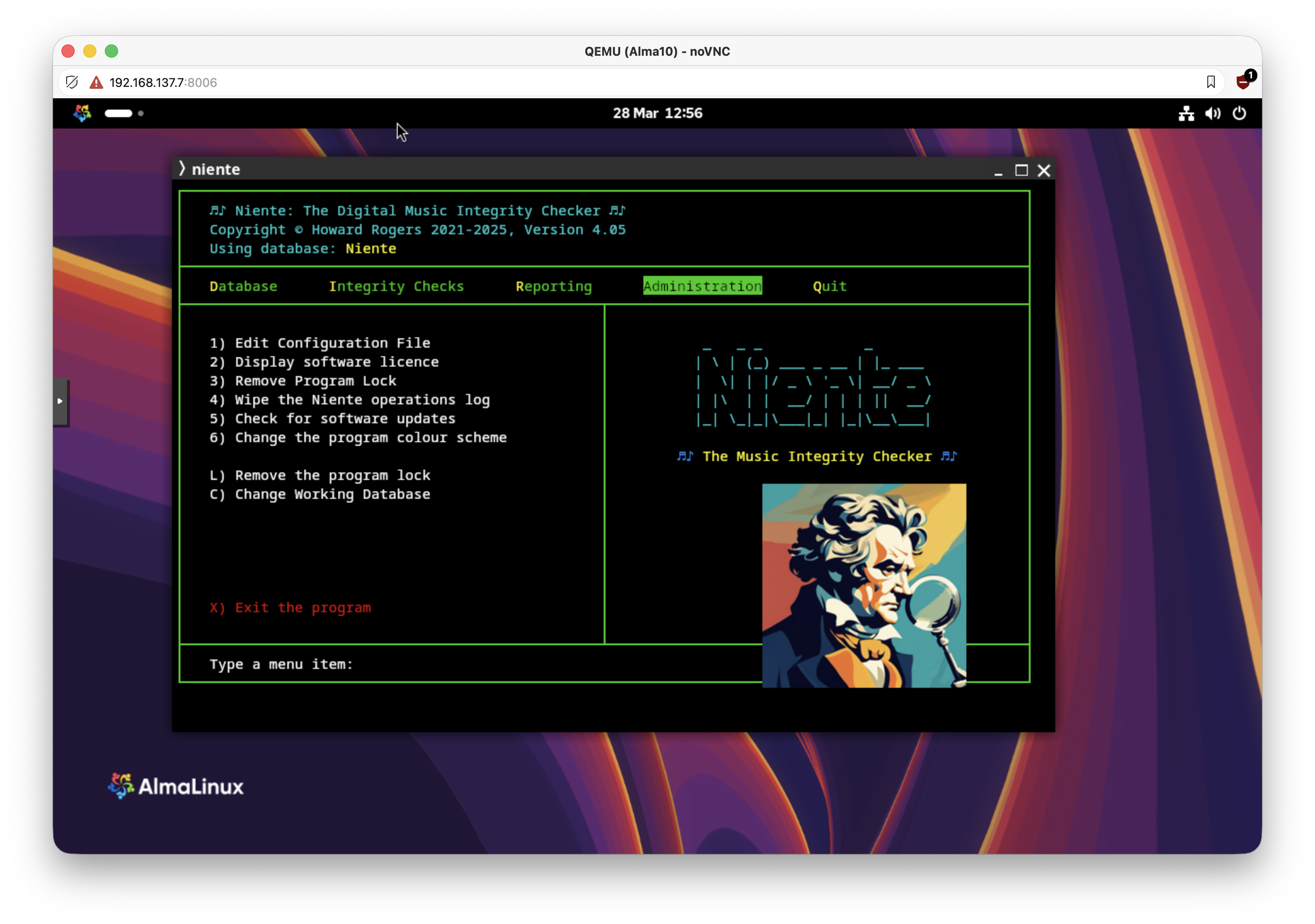
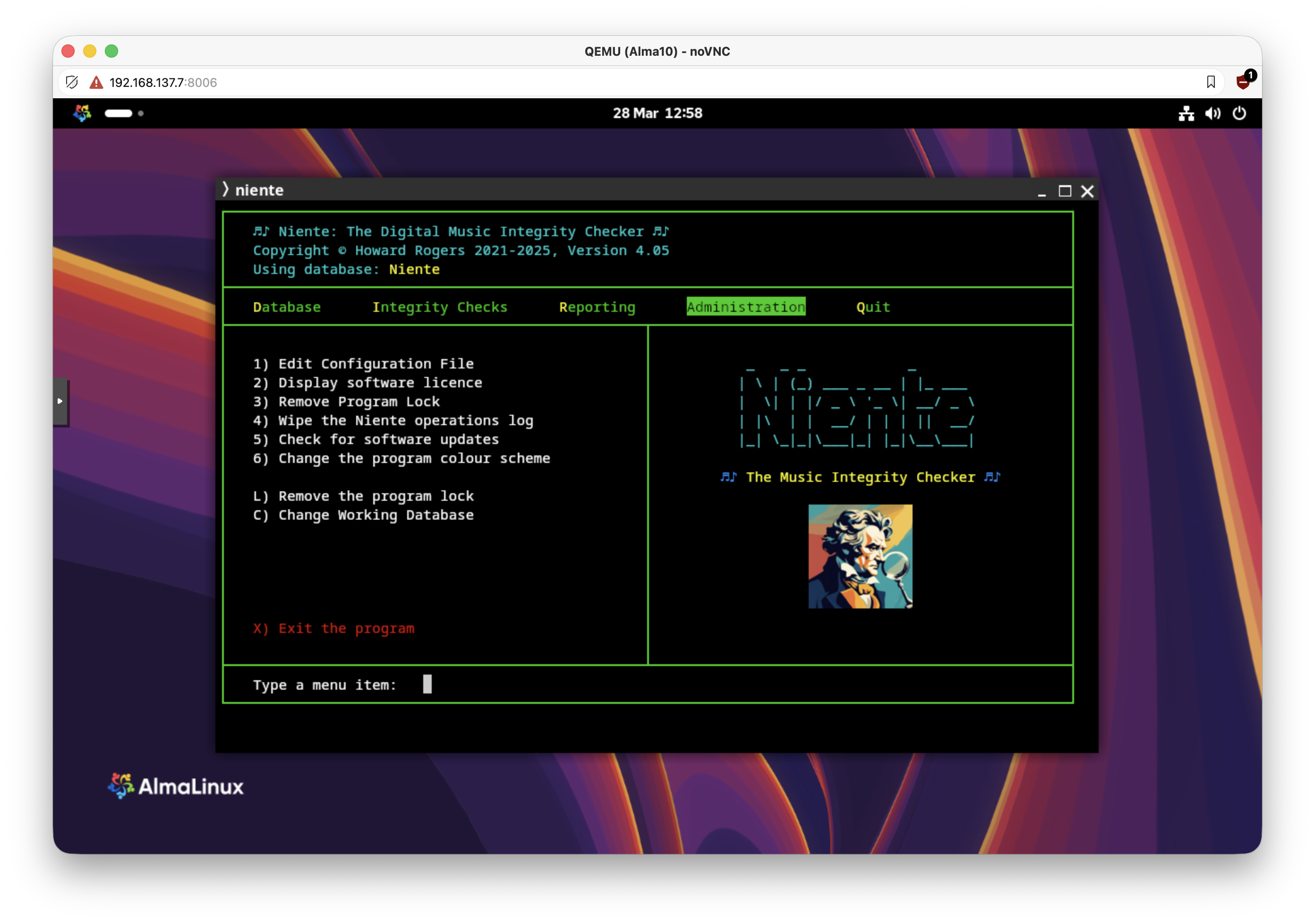
You may well notice, as in this screenshot, that the logo is way too big and in completely the wrong place! Again, don't panic: you have the Administration menu, Option 1 to adjust the 'Size of the Program Logo' and the “Program Logo position'. On my particular virtual machine, displaying on an iMac (so who knows what the right settings might be on real hardware?!), I found setting the logo size to “110” and the position to ”-5” to be ideal:
Play around as you like… and then consider taking the Administration menu, Option 6 to fiddle with the colour values associated with the various program display elements.
I'm sorry the upgrade process is a bit more convoluted than normal this time around. If you prefer, you can simply re-install Niente from scratch:
wget software.bbritten.com/neninst
bash neninst
A fresh install automatically installs the Kitty terminal and libsixel components needed to get that graphical logo displayed correctly. For a mere upgrade, you have to take care of those extra component requirements manually, I'm afraid. It is a once-off requirement! I did find that even on fresh installations, Niente would look ghastly until you had taken the Administration menu, Option 1 and pressed [Enter] to create a new persistent configuration file: it's a quirk of the transition, sadly.
Additionally, note that you don't have to run Niente with a graphical logo. If you would prefer to run Niente on AlmaLinux (for example) in the gnome-terminal, without switching on Kitty graphics, that will work just fine:
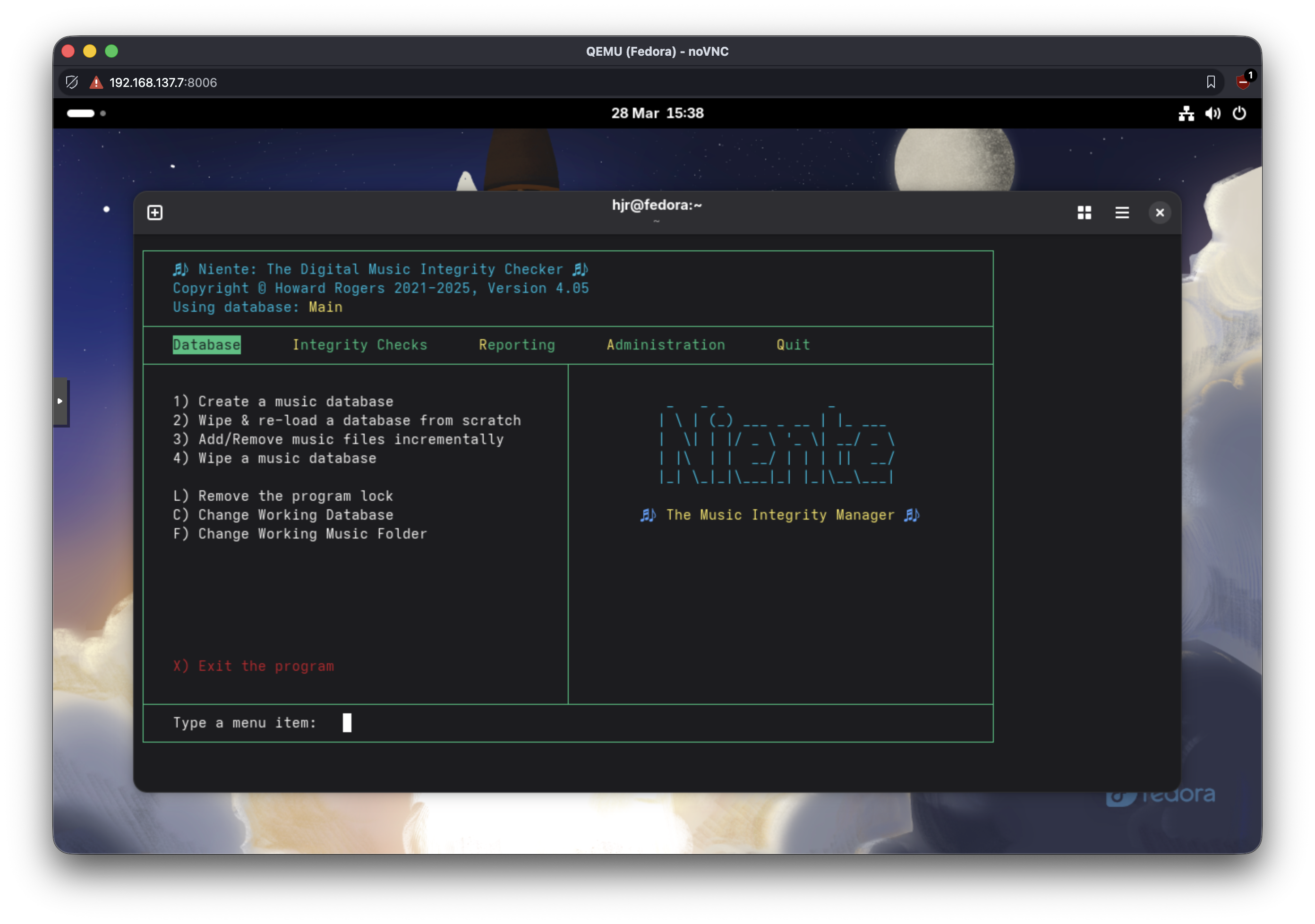
You just won't see the 'grumpy beethoven' icon on the right-hand side (which some might prefer, the Luddites!)
Note that unmentioned in the changelog is a bunch of code tidying that is really rather important that you have: I can't tell you the number of subtle code howlers I spotted whilst preparing this release! So I'd encourage you to upgrade, apologise again for the extra steps required, and assure you that nothing this big should happen again for quite a long time!
Normal service has been resumed...
 I had noticed that in recent days, this website had started to produce quite a few occasional '502: Bad Gateway' errors. This morning, it turned into a veritable flood, to the point where I literally could barely write anything without triggering one. I have accordingly spent a long 5+ hours trying to get things back on to an even keel, all ultimately without success. In a fit of desperation, I moved my entire website out of a Proxmox container and back onto physical hardware (albeit quite slow physical hardware!)
I trust that if you're reading this, it demonstrates that the move has achieved its goal of getting the site back online and in good order. My apologies for the outage. It does, unfortunately, mean that the raft of software updates I was planning for in the next day or two will have to be bumped back a bit (maybe a week).
Giocoso Random Music Selection Logic Bomb
 Imagine I have 100 recordings by Benjamin Britten, of all sorts of durations, from 2-minute long songs to 3-hour long operas. Imagine, too, that I have asked to select 10 recordings by Britten, that last between 20 and 40 minutes, but only the first of the 10 should actually be picked to be played for some reason.
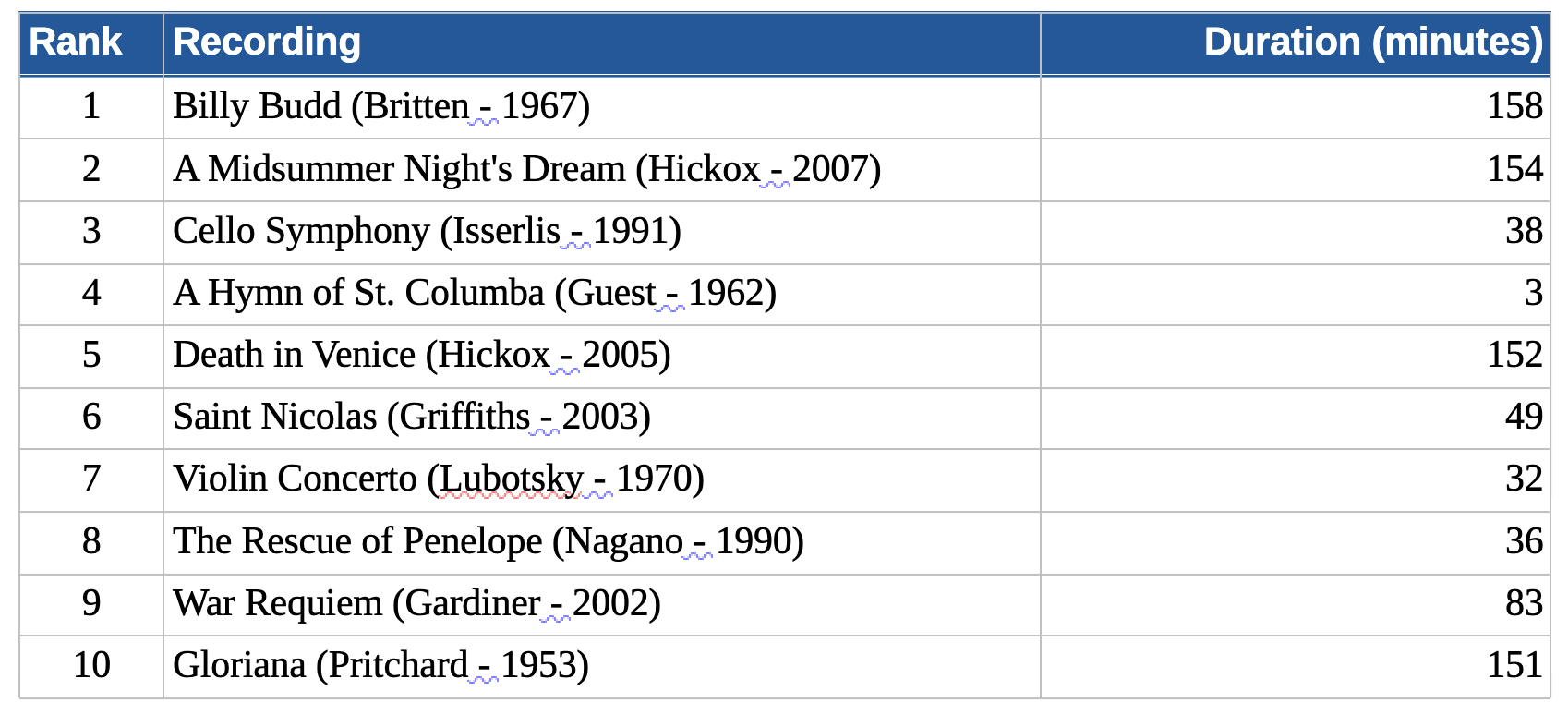
What Giocoso used to do was take the 100 recordings and randomly “rank” them: that is, it would assign a system-generated number to each one, starting at 1 and finishing at 100. Then it would grab the recordings with the first 10 ranking numbers (i.e., items 1 to 10), since that’s what I’d asked for it to select. Finally, it would assess those 10 recordings for their duration and make sure they fit between 20 and 40 minutes.
Here, for example, is the first pass: randomly select 10 recordings by Britten and rank them:
Now we apply the “between 20 and 40 minutes” filter:
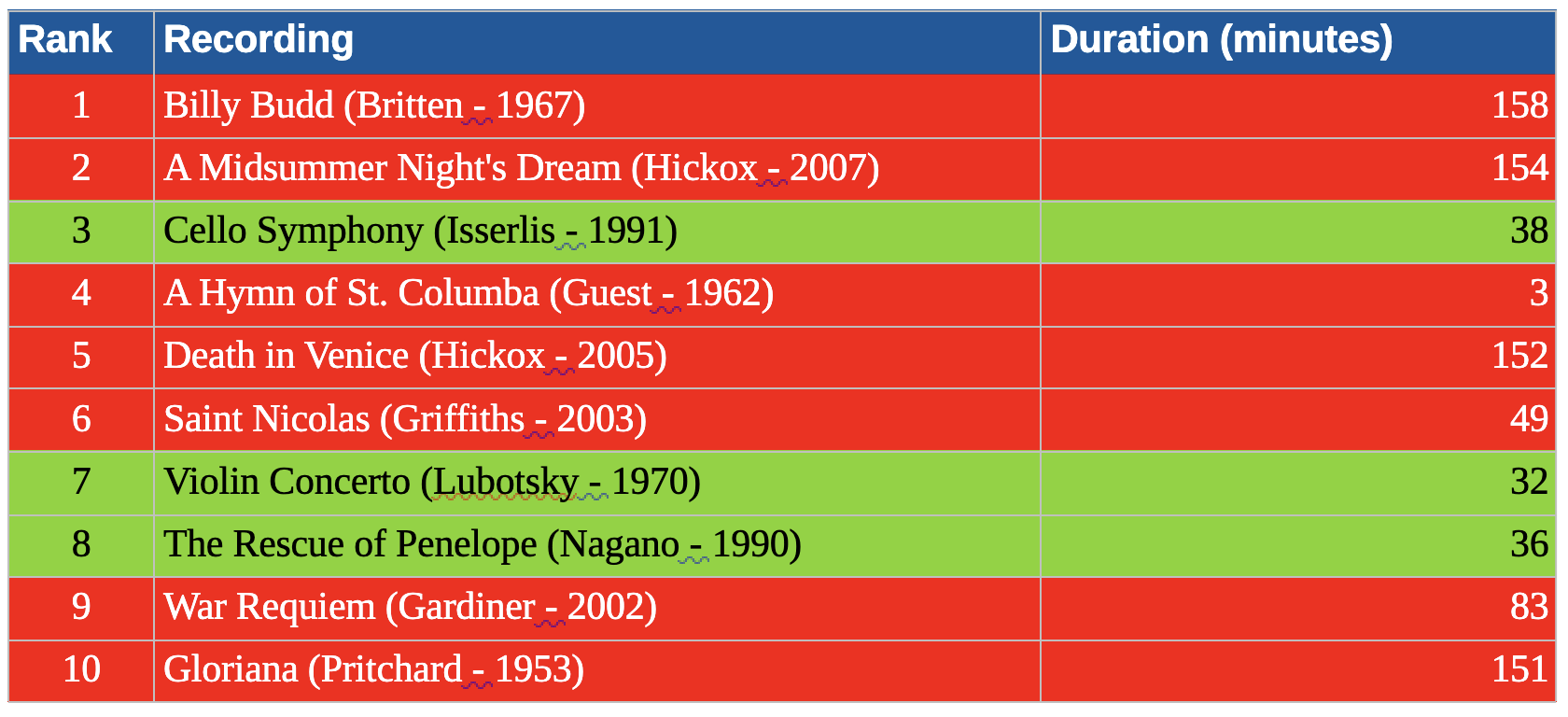
Only three recordings now match all our selection requirements.
Except there was one other requirement which makes things even worse: from the possible play candidates, play only one. The way Giocoso did that was to say “where rank = 1”… and I hope you can see that I won’t be playing anything by Benjamin Britten, because his ‘rank=1’ item is one of the forbidden recordings (forbidden by its long duration). The Cello Symphony could be played on duration grounds, but because it was already assigned a rank of ‘3’, the ‘rank=1’ selection test renders it ineligible for play.
This is how Giocoso has been selecting music for a long while now… and it’s logically flawed. It certainly “worked” with a sufficiently large music collection with sufficiently high numbers of different composers and with sufficiently lax duration requirements: but it ranked first and filtered second… and doing things that way round means that lots of eligible recordings (say, Britten’s Cello Symphony or Violin Concerto from the above example) would not get selected, because they happened to be assigned the wrong, not-1, ranking number early on.
The logically correct way of doing things is to filter first and rank second. If I had done that, I would have struck out all the red items in the last table for duration reasons and that would have left this selection of three candidate recordings:

Only now do I assign a ranking:

When I finally add in the “rank = 1” selection restriction: lo and behold, my next cycle of 10 plays will include the Cello Symphony.
By assigning rank early, I make it highly improbable I’ll find a recording to play (it is pot-luck if a duration-qualified recording might get assigned a rank of ‘1’); by assigning it late, assuming any recordings meet the duration requirement, I’m absolutely guaranteed to pick one of them when I add the ‘rank=1’ restriction.
I mention this now because I’ve fixed it in the forthcoming release of Giocoso 3.37. That release (I’m tentatively aiming for the very end of March) re-orders the selection and ranking operations, with the result that it’s now much easier for recordings that qualify on duration or other configured selection criteria to make it through to being played, without being artificially disqualified on the grounds that their randomly-assigned rank number is ‘wrong’! Instead of seeing lots of this screen:
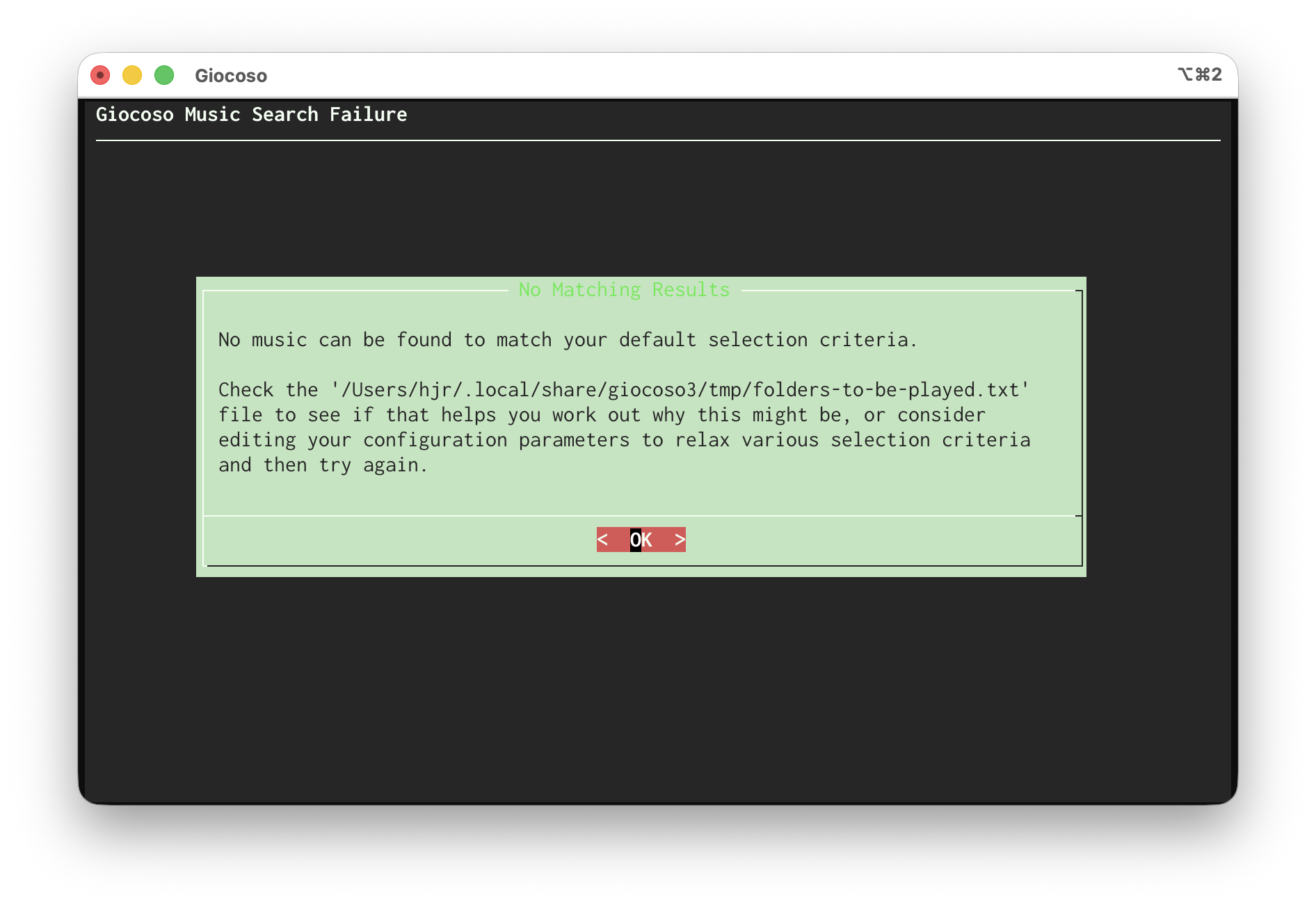
…you'll see much more of this sort of screen:
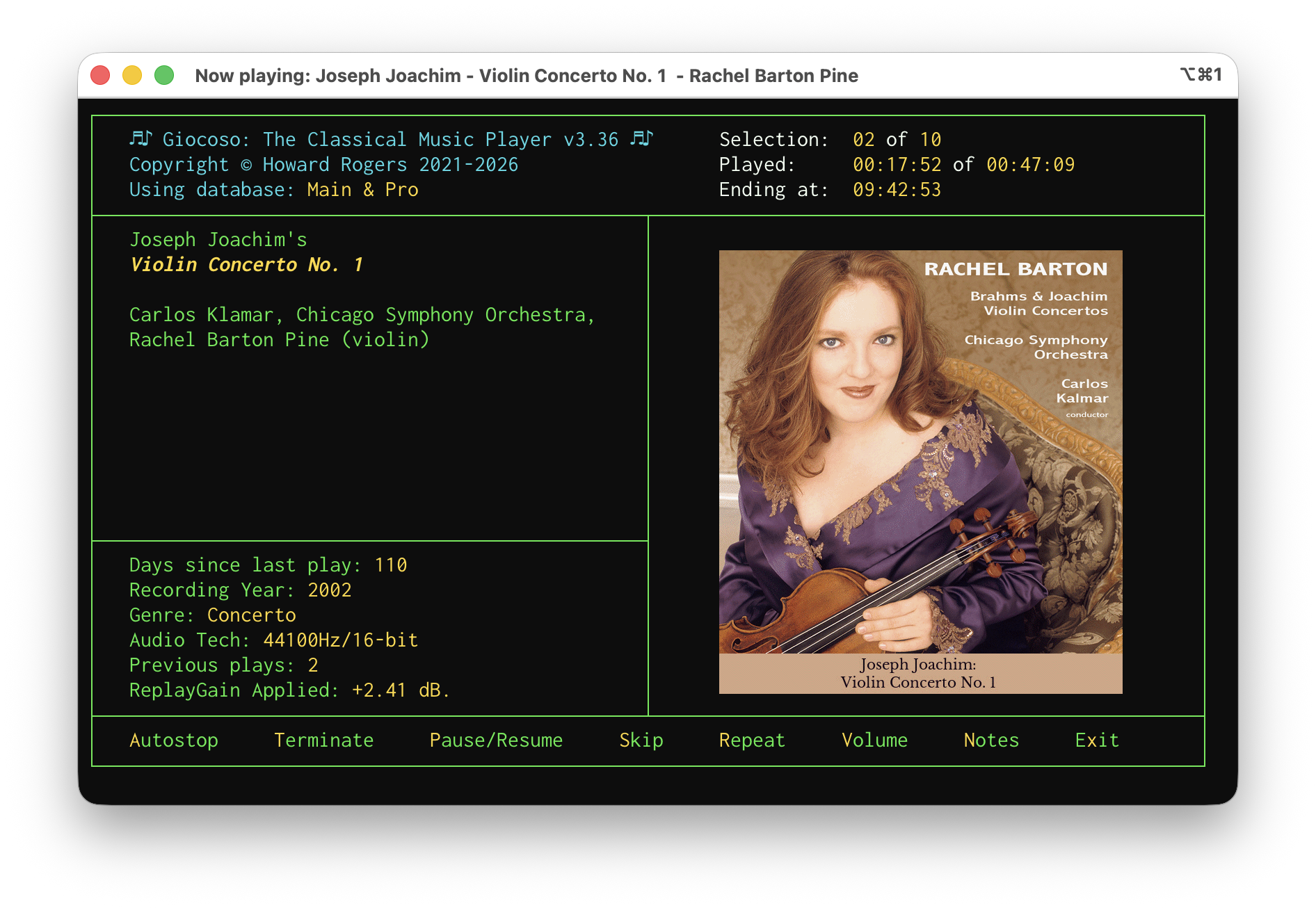
Giocoso music playback is, in short, now much more likely to play a diverse mix of works by multiple composers than before, whilst still holding fast to the ‘one composer per cycle of plays’ principle. I'm only sorry it took me this long to work out why I was having quite so many of the 'no music to play' screens before!
I’ll announce the next release here when it happens, of course: right now, I’m giving it multiple days of testing to ensure the logic is now really where I need it to be!